
Use Creative Fabrica’s Font Generator with Siser® HTV
Picture this: you’re working on cool design for a new shirt. You add in some text and begin scrolling through the different font options. Despite the dozens of typefaces available, none quite have the look you had in mind. You need something unique for this project. You could purchase a cool new font online, but you’re not thrilled about dropping a pretty penny on a font you only plan on using one time. If only there was a way to quickly get a unique font that could be used commercially…
The folks over at Creative Fabrica have recognized this dilemma that many crafters and designers experience regularly and have created the solution: a Font Generator! A first-of-its-kind tool, this Font Generator harnesses the power of AI to create a brand-new font from scratch that’s free from licensing restrictions.
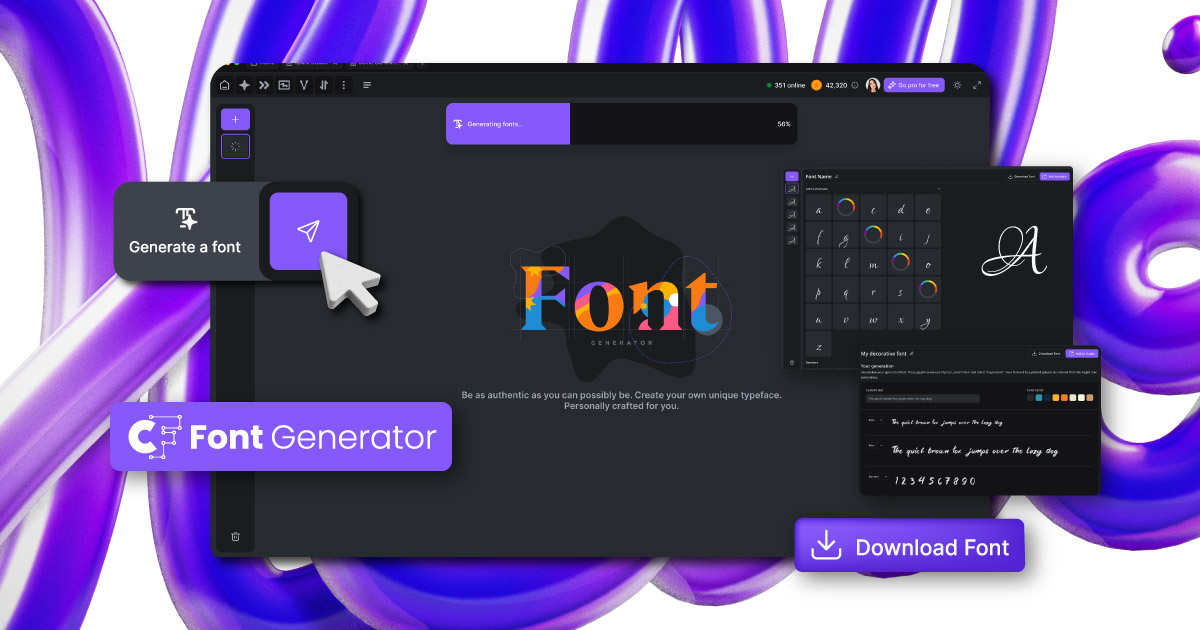
So how does it work? Can the fonts really be used in design software? How do they translate to HTV designs? Let’s dive in together and see if we can get some answers!
What is the AI Font Generator?
You may be familiar with generative AI tools (like Leonardo® Apprentice) that create images in a matter of seconds based on the prompt or parameters given. The AI Font Generator is a similar concept, but rather than generating images, the artificial intelligence creates a unique typeface.
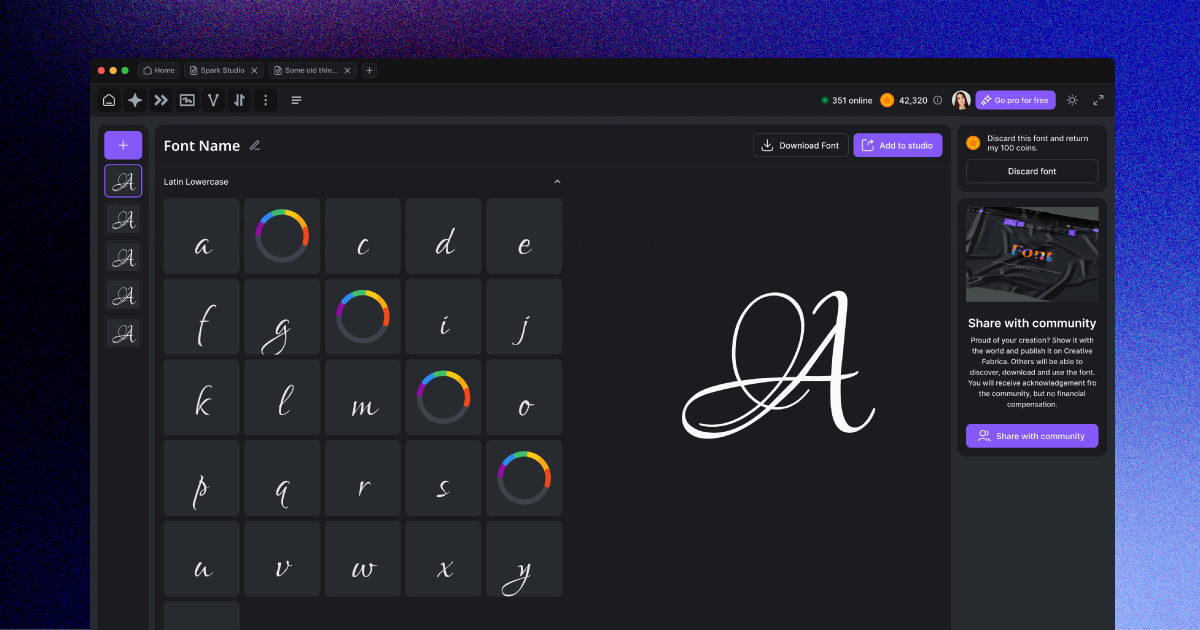
These aren’t just vector images that LOOK like letters either— the AI Font Generator creates an actual system font file (TFF format) that can be used across the programs on your computer! Each font is unique and comes with a commercial license, so you can use them for personal or commercial projects with no restrictions. (That means you can use these fonts on merch that you sell!)
Getting to the Font Generator
You’re probably wondering by now: how do I actually USE the Font Generator? Luckily, I’ve decided not to leave you hanging!
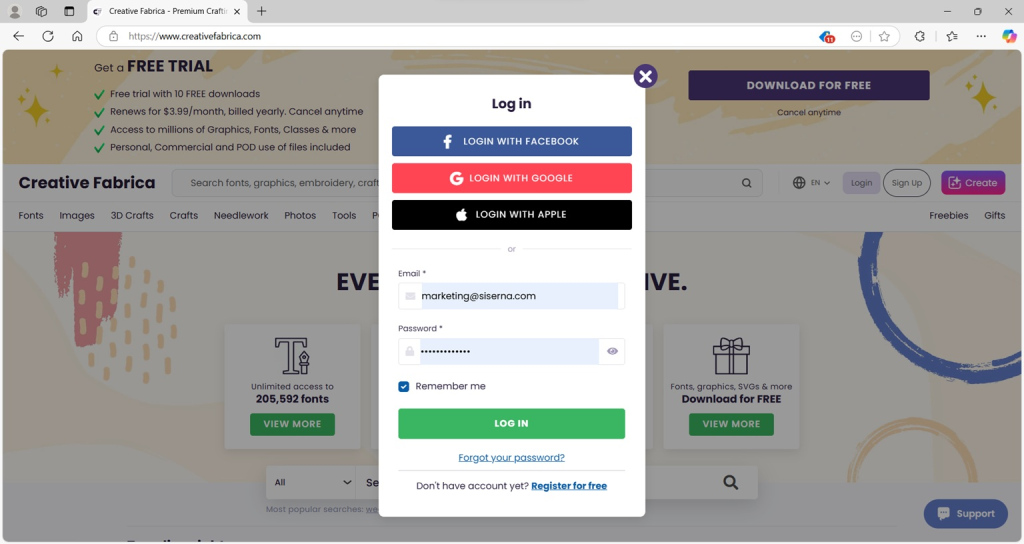
To use the Font Generator, you’ll first need to navigate to CreativeFabrica.com and create a FREE account. (Or log in to your account if you already have one)
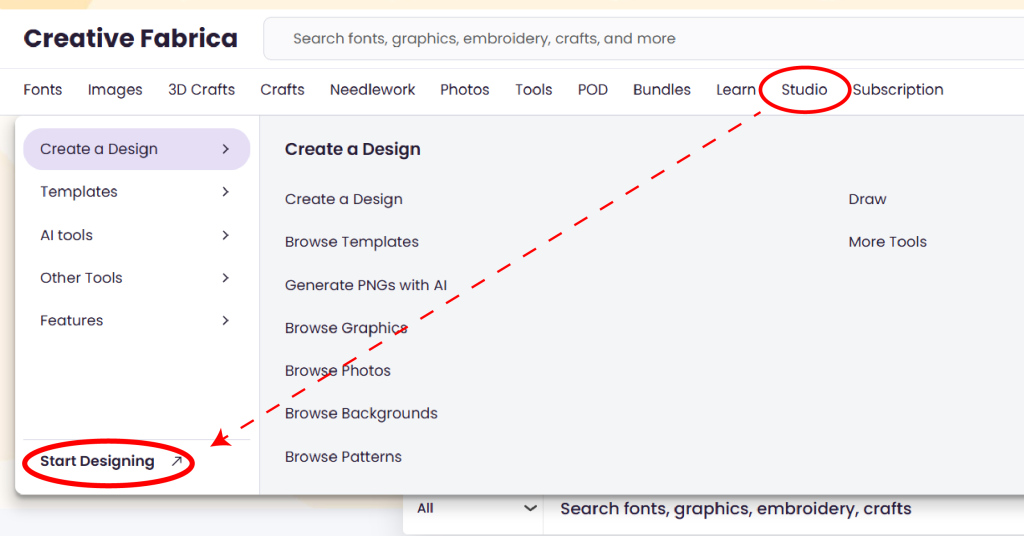
Once you’re logged in, simply hover over the Studio tab at the top of the nav bar, then click Start Designing in the lower left corner of this menu.
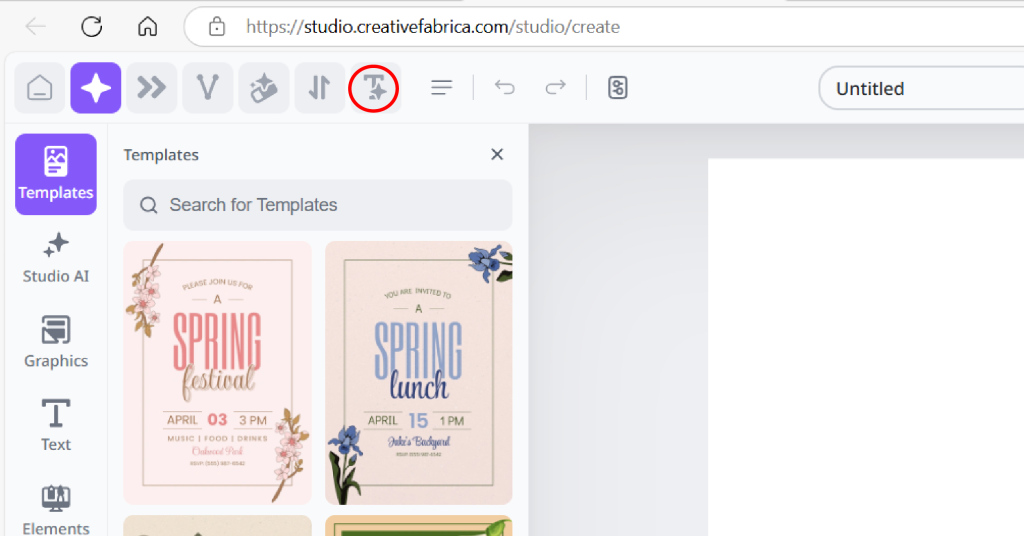
You’ll be brought to the Creative Fabrica studio page where you can then select the Font Generator tool at the top (it looks like the letter T with a sparkle)!
Generating a Font
You’ve made it to the page where the magic happens! Before we begin, it’s important to note that generating fonts within the Font Generator is free. Every Creative Fabrica account will receive 5,000 coins (Creative Fabrica’s own rewards currency), which will allow you to generate and download up to five fonts. If you are a Creative Fabrica All Access Subscriber, you can generate and download unlimited fonts!
You’ll see an option at the top to generate either a Decorative, Artistic, or Fancy font. You can also optionally choose to enter a prompt to further refine the font. For example, you might type in “curly” to encourage the AI to add some swoops and curls to the font.
Note: The prompting option is currently a work in progress at the time of writing this blog. As such, it may not behave as expected by the user until it’s been fully developed.
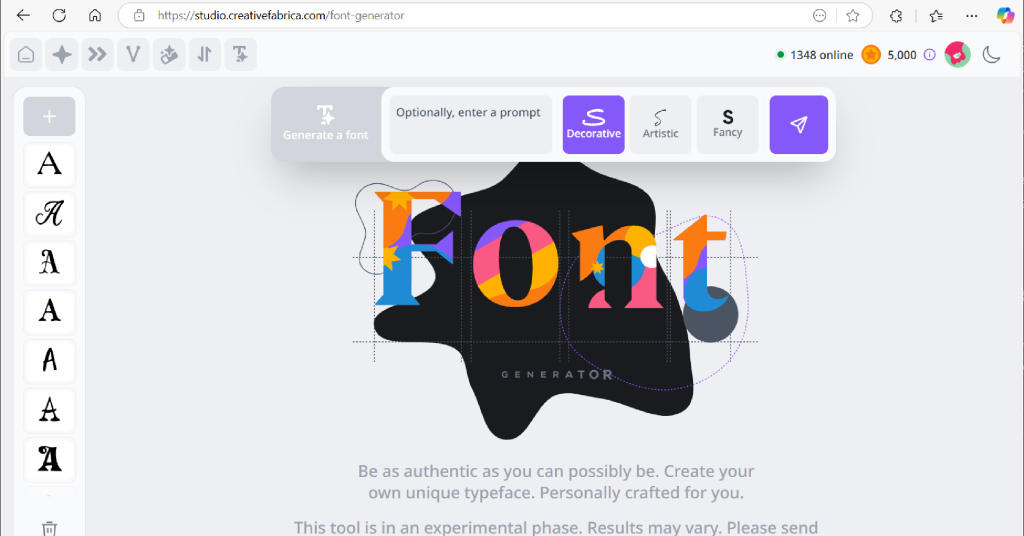
If you’re not quite sure what you want, you can let the AI decide! Simply click the paper plane button and the Font Generator will create a randomized, beautiful new font for you!
But that’s enough talk for now— let’s see the generator in action!
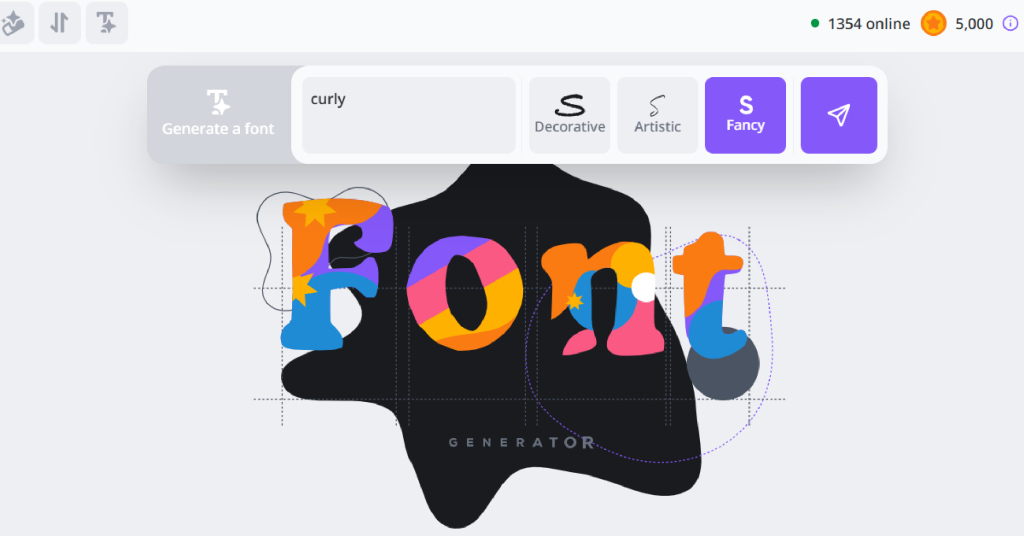
I’m going to select “Fancy” for this test run and I’ll also use that “curly” prompt from earlier to see if we can add a little bit of whimsy to my custom font. Now I’ll just click the paper airplane button and start the generating!
You’ll see a pop-up appear in the bottom right corner of your screen as the AI “thinks” and can watch the Font Generator’s “thought process” play out in real time. Pretty neat!
After a few seconds, the Font Generator will finish its work, and you’ll see the final result!
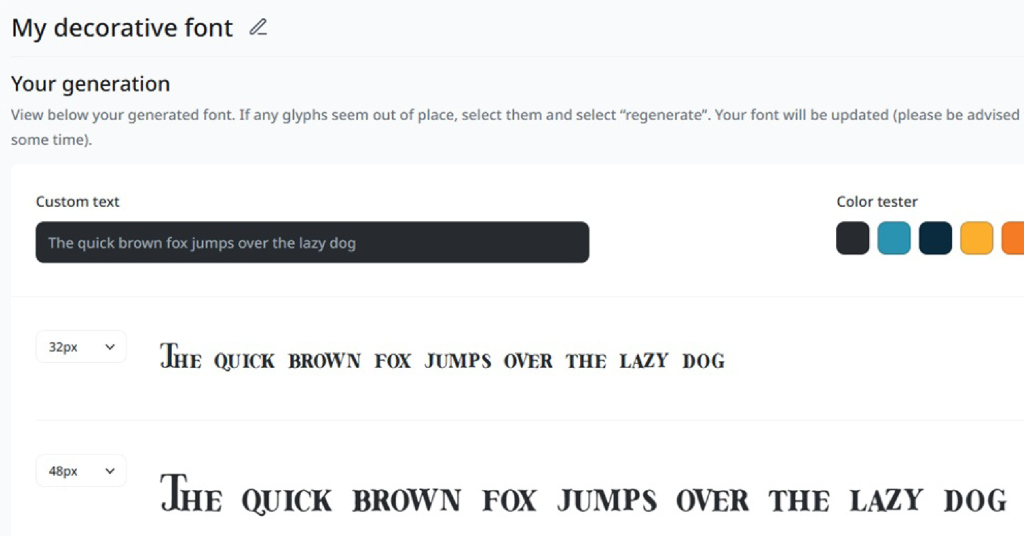
Look at that fancy new font I have!
Previewing and Adjusting a Font
The Font Generator also has a number of tools you can use to adjust and preview your font. I can use the Custom Text box to type in different sentences to see how the font will look. There’s even a color tester to the right that lets you see how your font will look on different colored backgrounds!
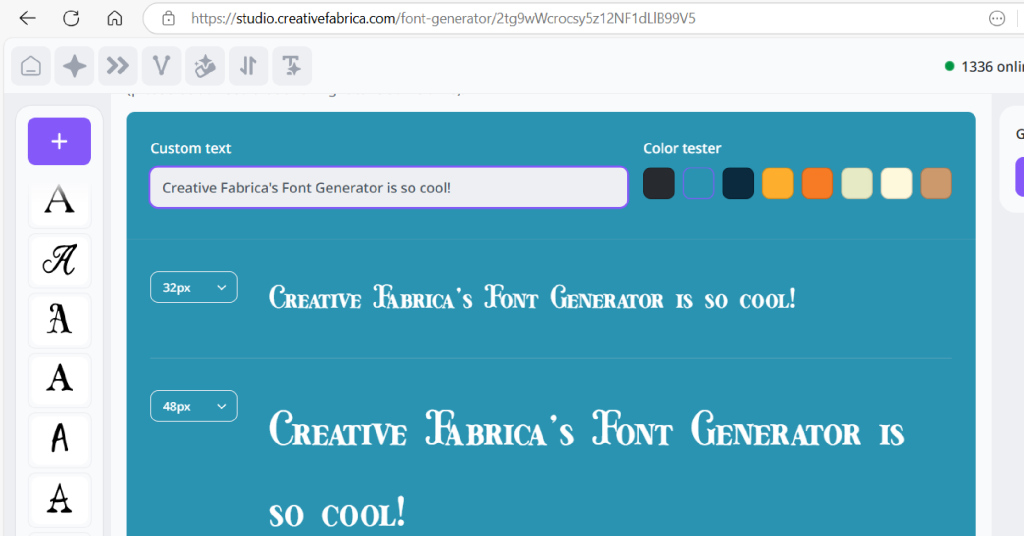
Let’s say you’re satisfied with MOST of the letters, but there’s one or two that don’t quite look right. Don’t worry— there’s no need to start completely over! Simply scroll down and click on one of the letters, then select the Regenerate button to the right.
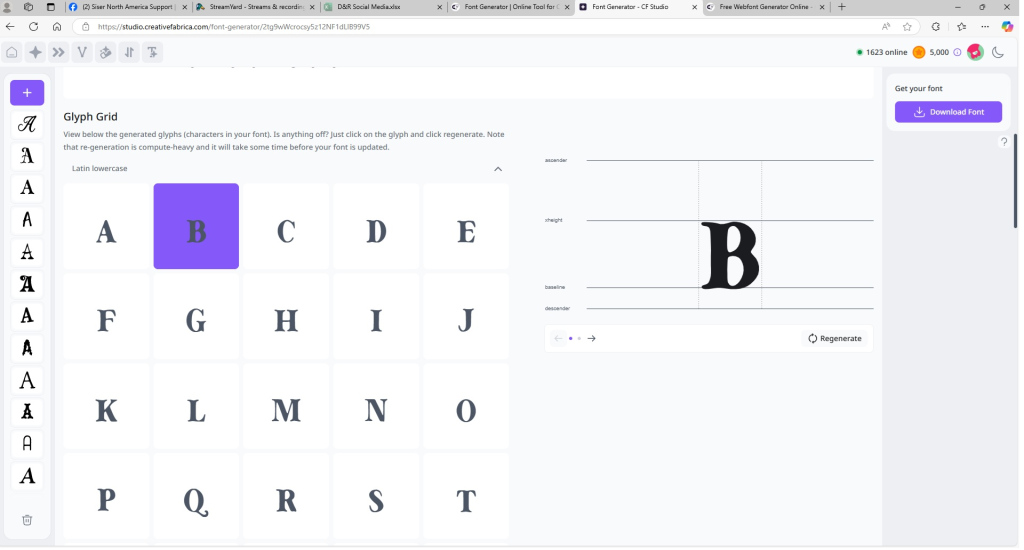
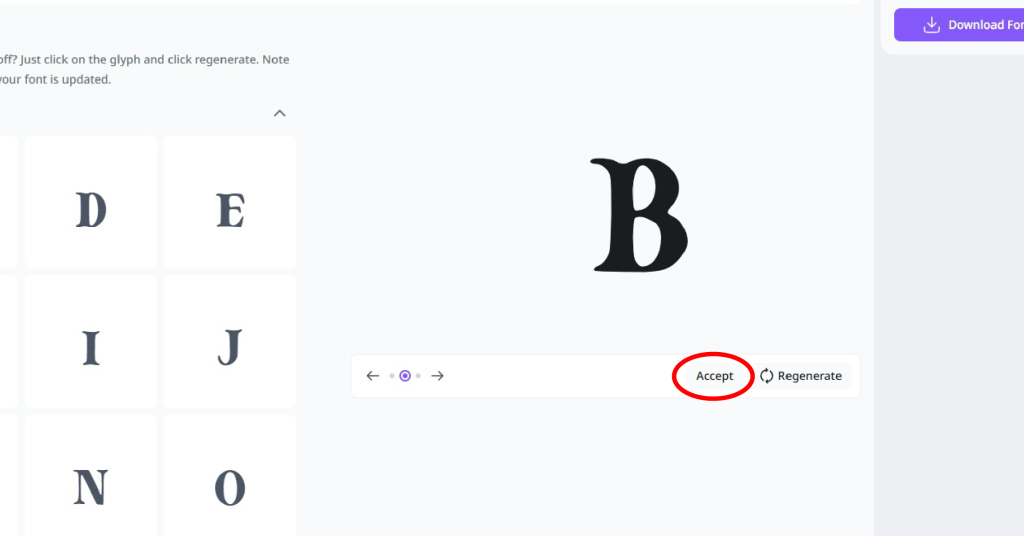
The AI will create a new version of that letter, and you can use the arrow buttons to swap back and forth between the new letter and the original. If you like the new version better, click Accept to overwrite the old one in your glyph panel!
If you’re satisfied with the result (I sure am!), you can name your font by clicking the pencil icon towards the top of the page. Then simply click the Download Font button at the top right to save the generated typeface as a .TTF file.
If for whatever reason you’re not satisfied with the font that was generated, you can easily delete it by hitting the Discard font button— which will refund your 1,000 coins so you can try again!
Whether you kept or discarded your font, you can always generate another by hitting the purple + button in the top left corner!
Installing Fonts
So now you know how to create and download new, unique fonts using the AI Font Generator. The next step is to USE those fonts!
First, you’ll need to install the font. On Windows, navigate to your Downloads folder and double click on the .TFF font file. Click Install on the window that pops up and you’re good to go!
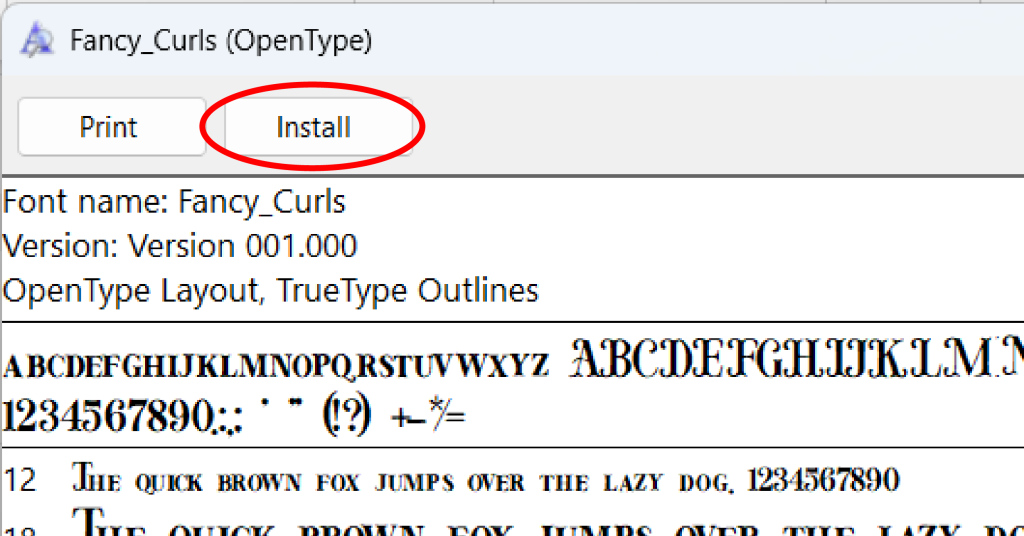
For Mac computers, the process is similar: simply locate where the .TFF file is downloaded, double click it to open up Font Book, and then click Install!
Voilà! Your font is installed and ready to be used anywhere on your computer! This includes programs like the Adobe Creative Suite, Microsoft Word, Silhouette Studio, and of course… Leonardo Design Studio!
Using Fonts in Leonardo®
I may be biased, but my favorite program for creating cuttable designs is Leonardo Design Studio. Let’s open it up and see the font in action.
For my first example project, I’m looking to make a “fancy” design with thinner text. I just created a new, classy font using the Font Generator which I named “Classy”. Over on the Design Page, I’ll use the Text Tool to start typing, then I can scroll down the Font Selection list to see my new font waiting for me! Simply click on it to start using it.
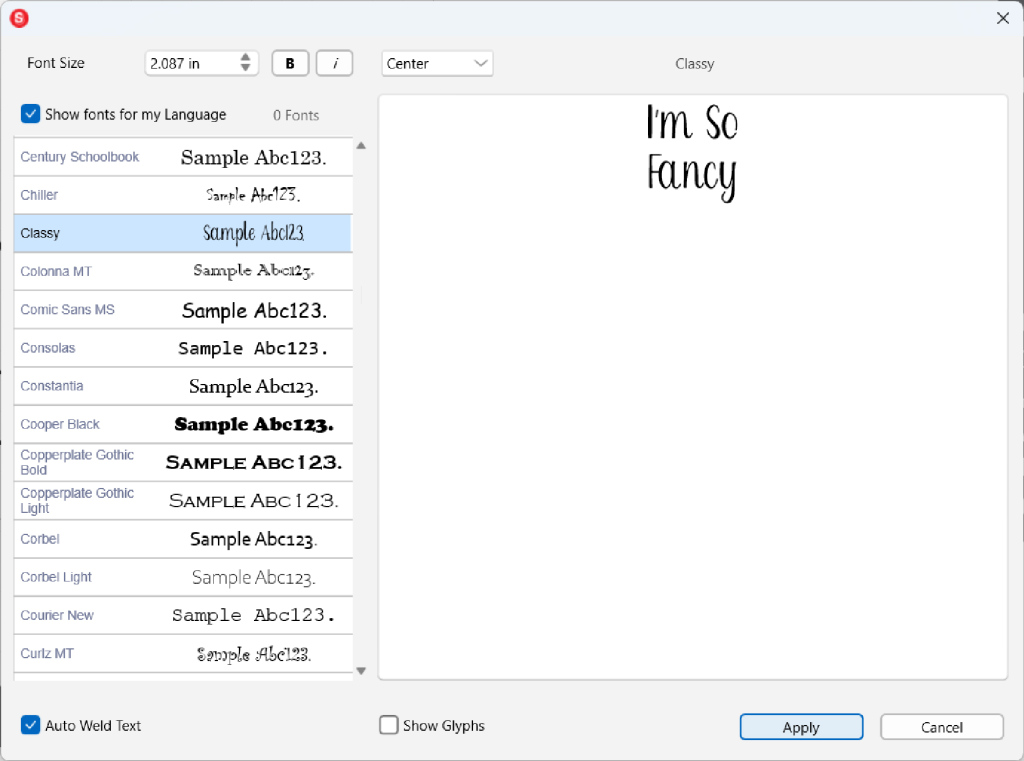
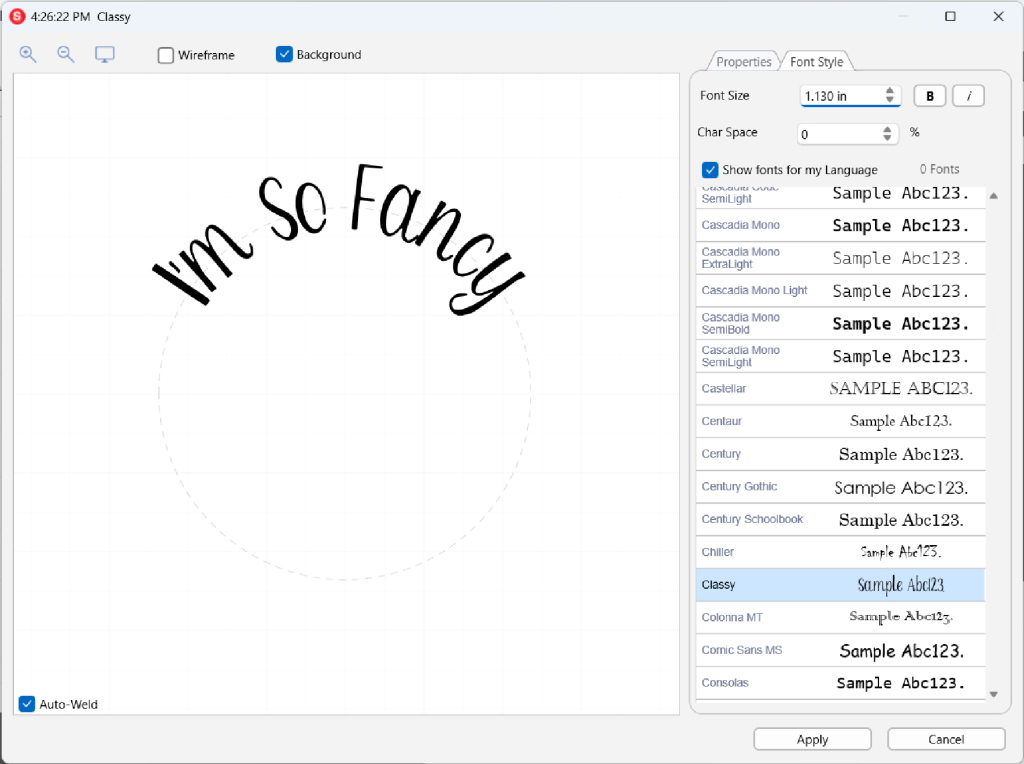
Just like with any other system font, I can manipulate it with various text modifiers (like Bold or Italic). I can even use it with the Text on Arc and Text on Path tools available with Leonardo Pro! Again, these aren’t just vector shapes- it’s a REAL font!
Now that I’ve got my shiny new font on the Artboard, I’m going to combine it with a graphic, so I have a full design ready to be cut and applied. Since I used an AI font generator for the text, I’ll head over to Leonardo Apprentice to use AI for a quick graphic to go with it!
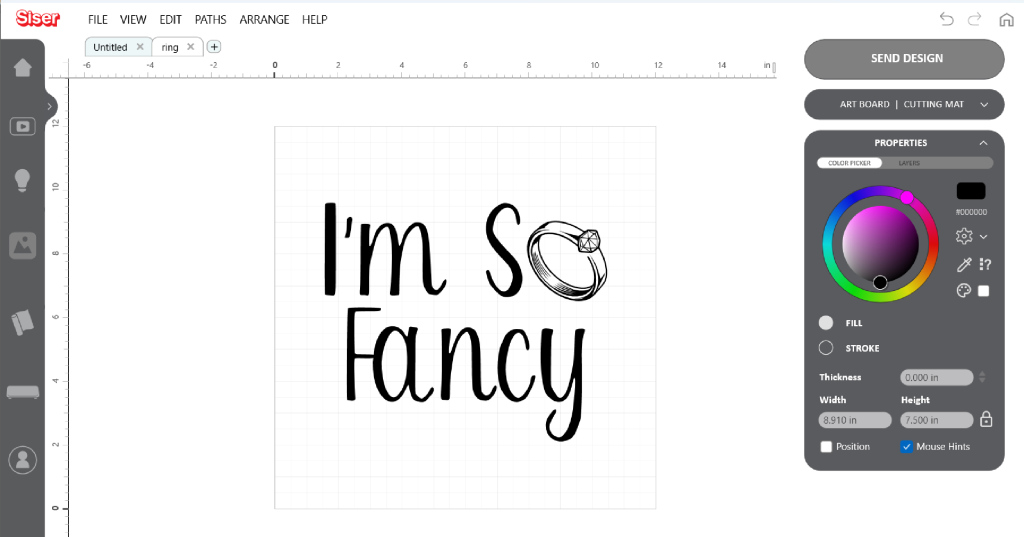
Perfect! Now my design is ready to roll. (Don’t judge… I’ve been out of graphic design for a while now)
Generating Different Fonts for Different HTVs
EasyWeed® Electric
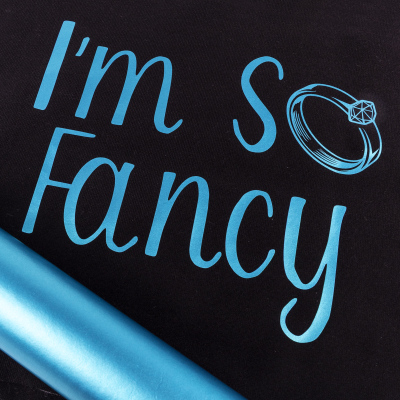
Just like graphics, certain fonts tend to work better with different heat transfer materials. For example, this fancy, thinner font I generated will work great with EasyWeed® Electric!
I can quickly cut out this design with the help of Romeo®, weed away the excess, then heat apply it for a sleek look!
Easy® Puff Metallic
The AI Font Generator works great for creating other types of fonts, too! Let’s say I’m working on a design for Easy® Puff Metallic, which will expand into a 3D look when applied. I can easily use the font generator to whip up a big, bold font that will look even better when puffed up!
Back in the Font Generator, I’ll choose “Decorative” as the style and type in “bold” for the prompt. Let’s see what the AI comes up with…
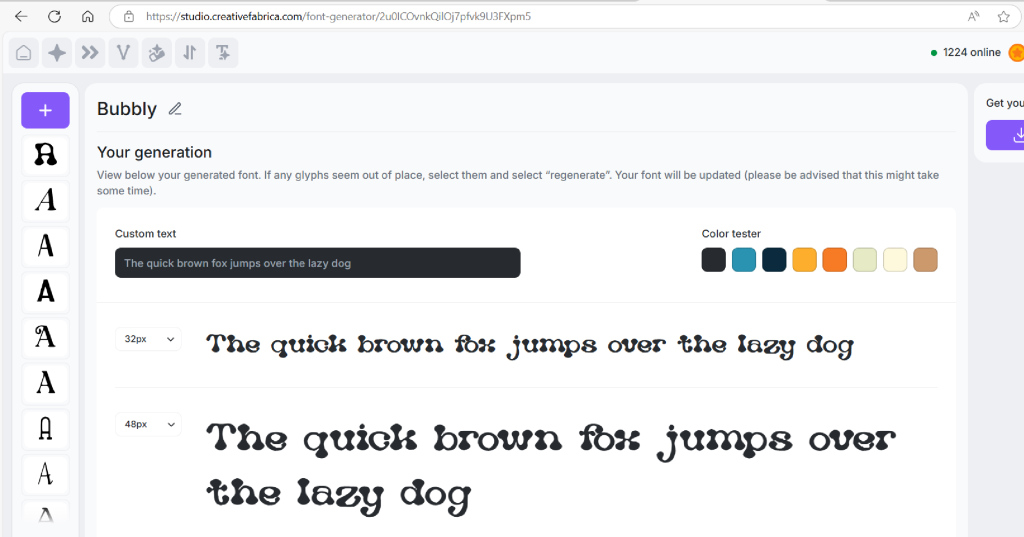
Perfect! This font should look great when Easy Puff Metallic puffs up. And since this material sort of reminds me of balloons, I’ll grab a fun balloon animal cut file from the Design Library to combine with the font.
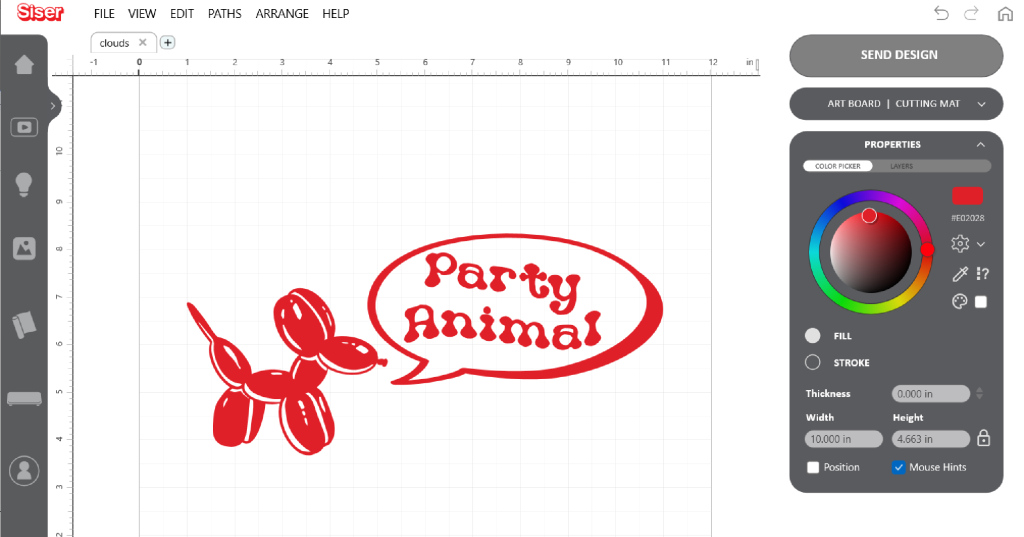
With the help of Romeo, this design is cut out in just a couple of minutes. Now it’s time to apply!
Tip: Easy Puff Metallic is applied with a heat press set to 280°F with medium pressure for 8-10 seconds. The carrier is then peeled warm, and the design is pressed a second time for 8-10 seconds in order to activate the “puff effect”. Click here for a PDF of HTV application instructions.
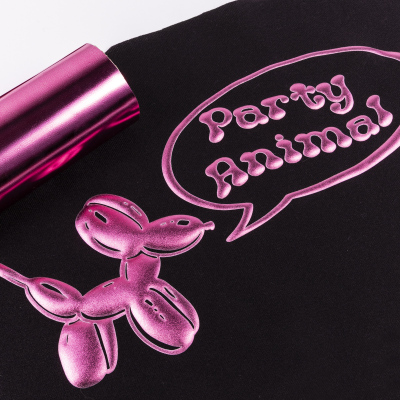
How cool is that? This bold font really shows off the dimensional nature of Easy Puff Metallic!
StripFlock® Pro
Let’s try one more font and HTV combo. Personally, I’ve always felt that StripFlock® Pro looks great on “distressed” fonts. The added texture of StripFlock Pro really lends itself to a “grungier” style.
Back on CreativeFabrica.com, I’ll type in “distressed” into the Font Generator. I’ll also choose Artistic to help the generator narrow in a bit more on what I’m looking for.
Time to generate! Drumroll, please…
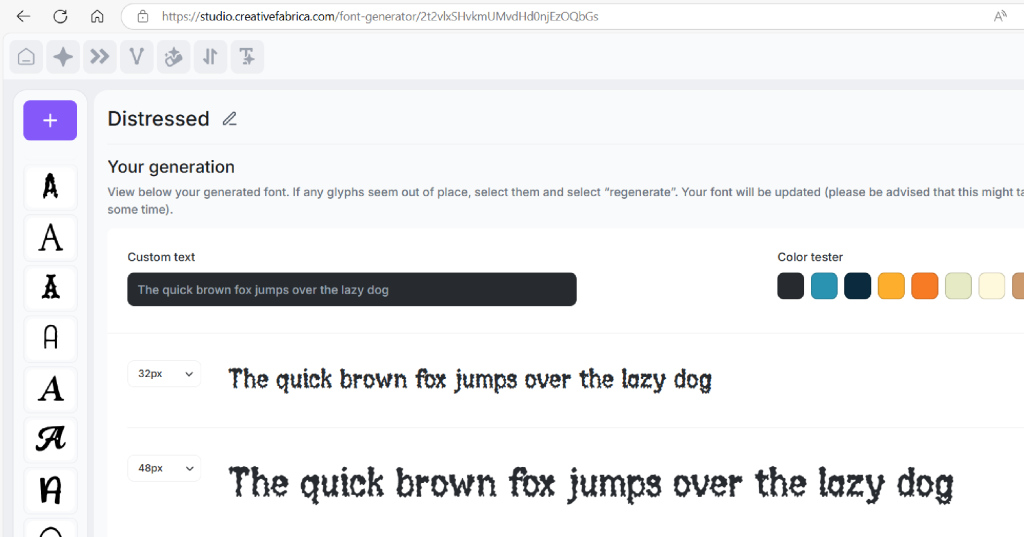
Ta-da! This is exactly what I was looking for!
I can once again import this font into Leonardo Design Studio, type in my custom text, and pair it with a design. I’ll hop on over to Leonardo Apprentice again to generate a quick ghost design for this project.
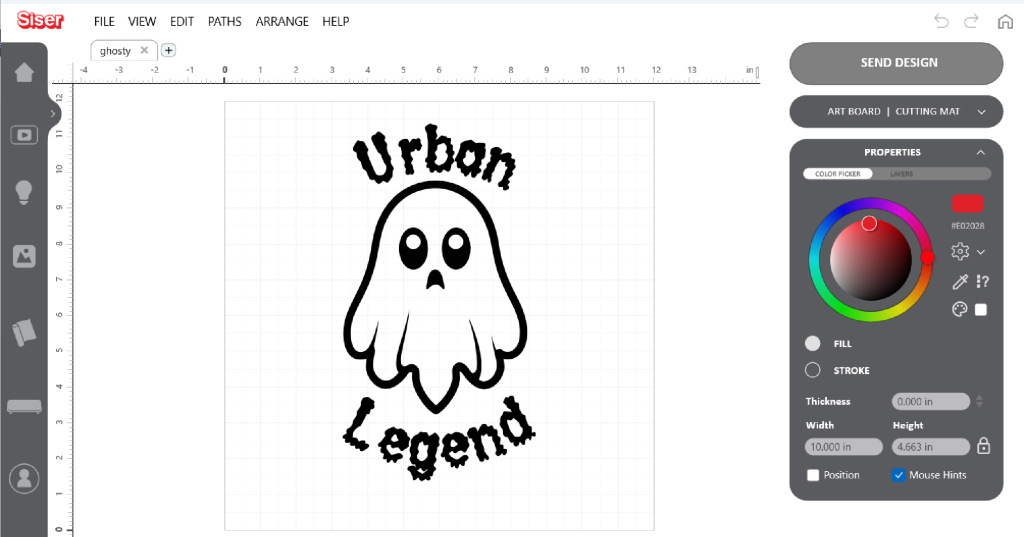
Perfect! I’ll once again cut it out using Romeo and then heat apply.
Tip: StripFlock Pro applies at a temperature of 310°F with medium pressure for 15 seconds. Click here for a PDF of HTV application instructions.
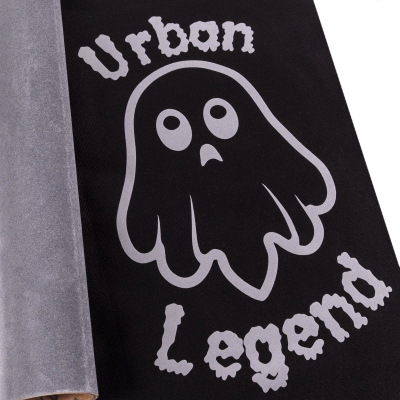
Lookin’ sharp! Or should I say… soft?
Conclusion
Creative Fabrica’s new AI Font Generator is not intended to be a replacement for the thousands of beautifully crafted fonts out there. It is however a great tool to use when you need a quick way to liven up your text for those last-minute or one-off projects.
The AI Font Generator is available to use for everyone with a Creative Fabrica account— and you’ll even get 5,000 coins for free (that equals 5 free generated fonts)! And if you’re an All Access subscriber, you can generate UNLIMITED fonts!
Visit the link below to check out the AI Font Generator today and let us know what materials you paired with your shiny new font with!
Want to learn even more about the Creative Fabrica AI Font Generator? Check out their behind-the-scenes video below!