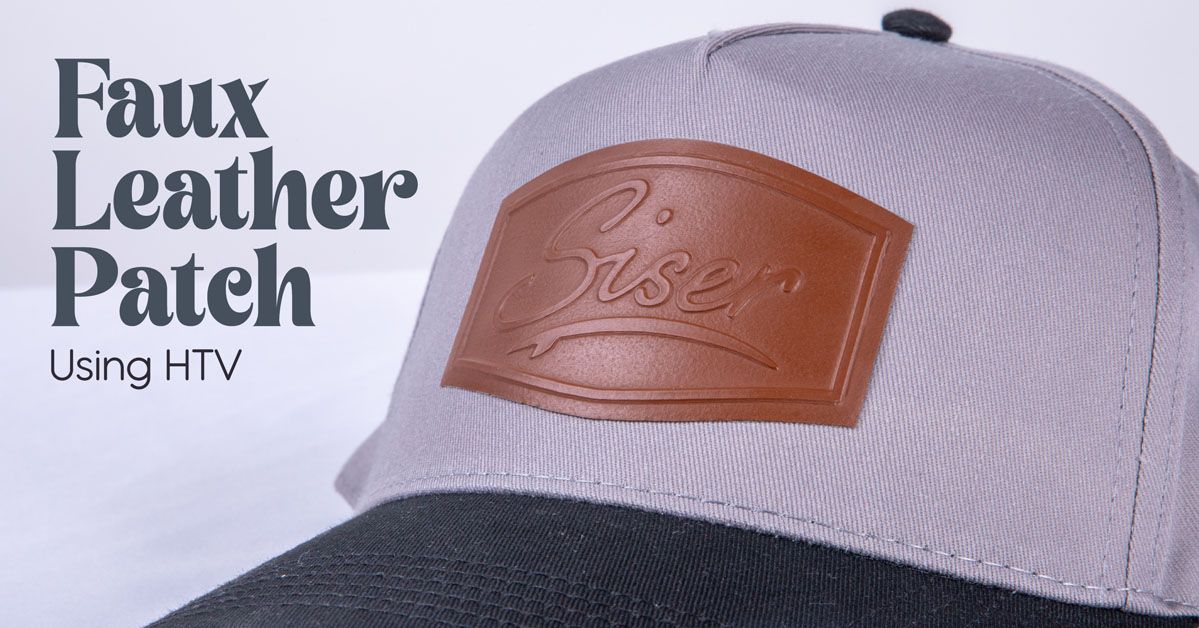
Create Faux Leather Patches with HTV
Have you ever wanted to create your own leather patches, but the thought of working with leather- or even faux leather- was a bit too intimidating?
Believe me— I understand! I like sticking with heat transfer vinyl for the simplicity… and all the different color and finish options!
But what if I told you there was a way to create patches that look like leather using *only* HTV and a little something we like to call the “emboss method”? Keep reading, because I’m going to show you how to create your own faux leather patches!
Understanding the Emboss Method
Before we dive into creating your first faux leather patch, it’s important to first go over the Emboss Method.
Simply put, the Emboss Method involves applying a layer of Brick® 600 onto a garment, then applying a second layer of a thinner HTV (like EasyWeed®) on top.
After the second press, the Brick 600 will “push up” into the material on top, creating a nifty embossed effect… like seen in the Dad Hat below!
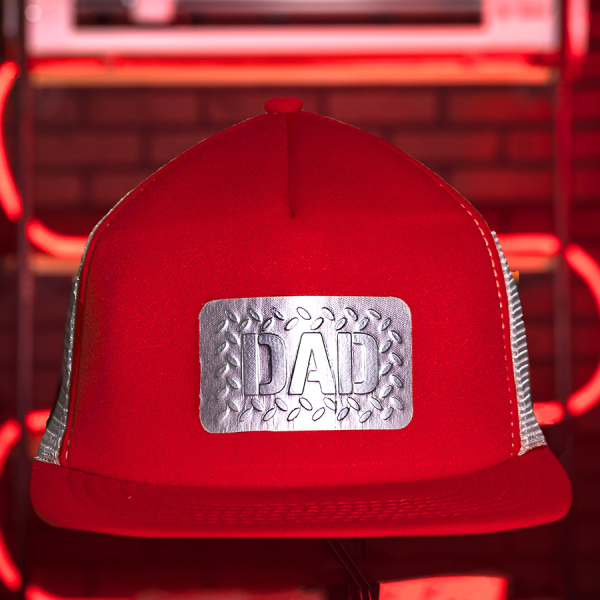
Pretty cool, huh? If you want to see the embossing method in action, check out Patrick’s video.
So, how does this relate to faux leather patches?
Our friend Kathleen discovered a way to use the Emboss Method in a unique way to create an end result that looks just like a real leather patch! Best of all, it’s super easy to make with just about any design.
Alright, that’s enough teasing. Let’s dive into the process!
Creating a Faux Leather Patch
First things first: you’ll need the following supplies to create a faux leather patch:
- Design Software
- A Vinyl Cutter
- A Heat Press (or Hat Press if applying onto a hat)
- A cotton, polyester, or cotton/poly blend substrate
- StripFlock® Pro (any color)
- Brick 600 (any color)
- EasyWeed (Mocha)
- An EasyWeeder®
- Some Parchment Paper
Once you have all the supplies, we can dive right in!
Step 1
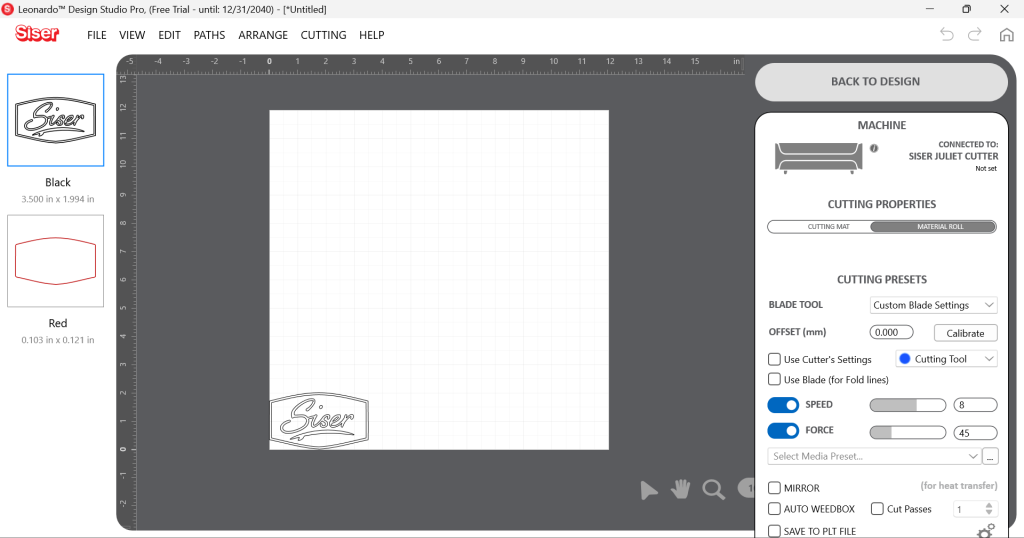
Open your SVG design in the creative software of your choice. In this case, I’m using Leonardo® Design Studio. Resize your design as desired.
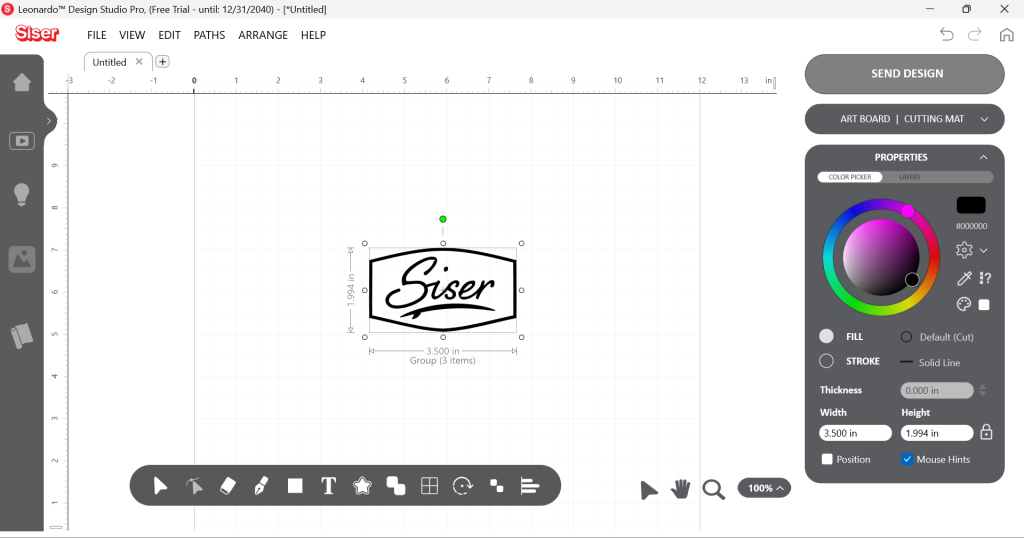
Step 2
On the artboard, create an offset that’s a little bit bigger than your design. This offset will be cut twice and act as the “base” of the patch as well as the top layer.
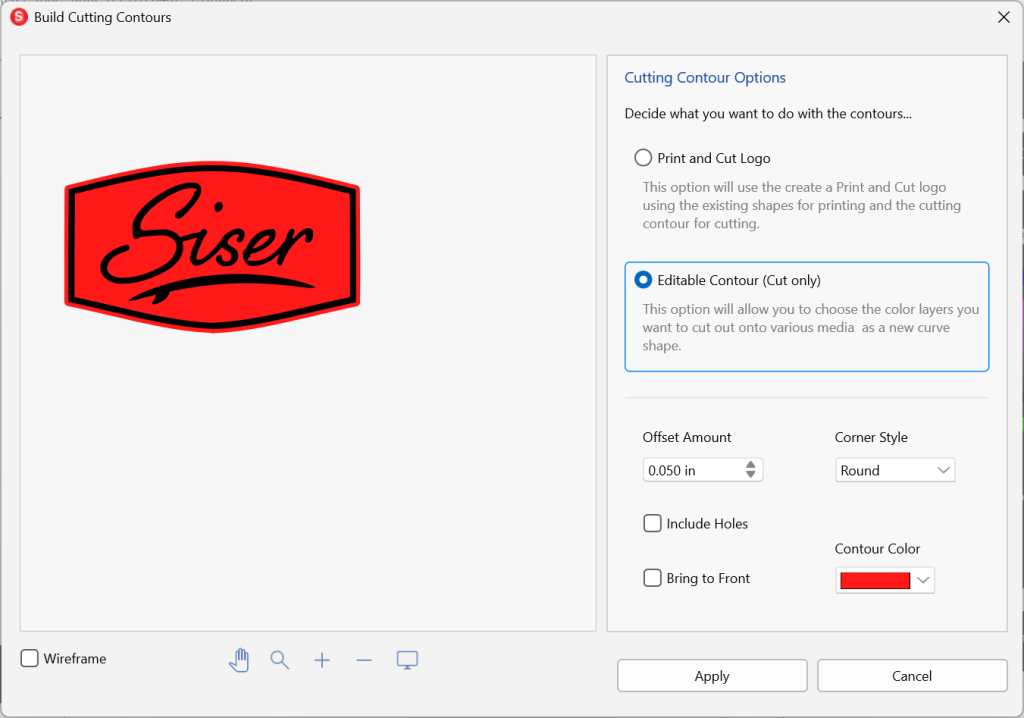
In Leonardo Design Studio, you can create an offset by selecting the Build Contours Tool.
Step 3
Cut out the layers separately using your craft cutter. (You may need to separate the layers manually on your Artboard if your design software doesn’t do it automatically.) I’ll be using my trusty Juliet® High-Definition Cutter.
The layers should be cut with the corresponding materials:
- Design – Brick 600 (any color)
- Offset Shape – StripFlock Pro (any color)
- Offset Shape– EasyWeed (Mocha)
Step 4
Once all layers have been cut and weeded, it’s time to heat apply! Take your substrate (in this case, a hat) and place it on your heat press platen. Make sure your heat press is set to 311°F/155°C.
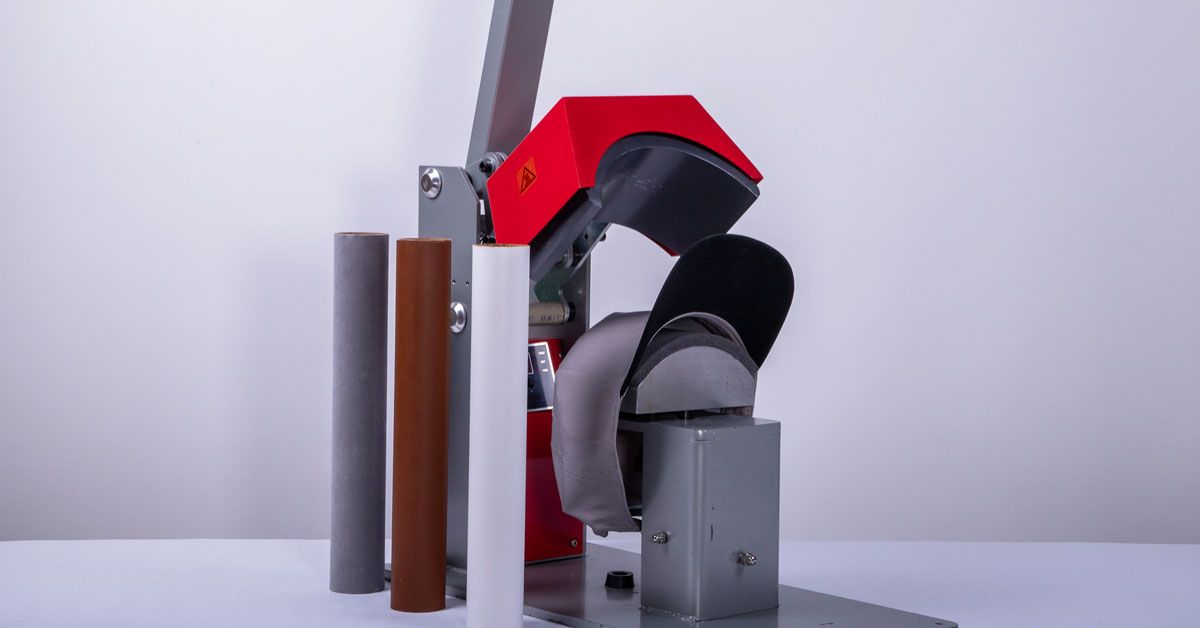
I’m using a hat press for simplicity, but you can also use a regular “flat platen” heat press as well. Just position the hat face-up towards the edge so that the bill doesn’t interfere with application. You may also want to stuff a small towel in the base of the hat to help get even pressure.
Step 5
Arrange the StripFlock Pro onto the hat, centered to the best of your ability. Cover with parchment paper and press for about 5 seconds, then wait for the HTV to cool a bit before peeling the carrier warm.
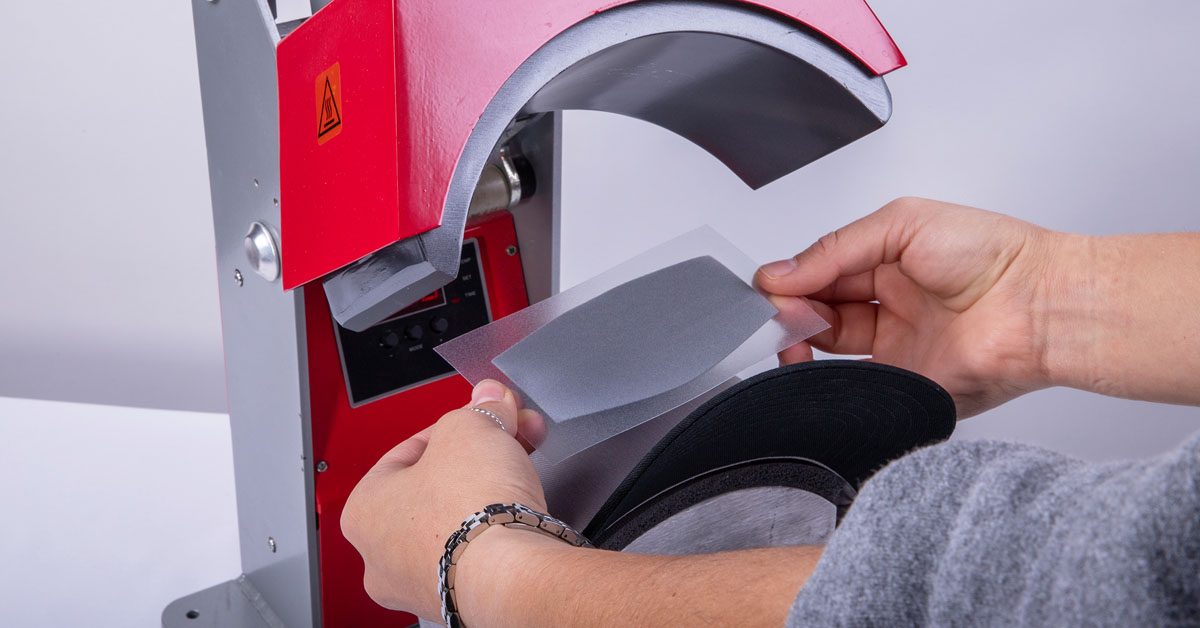
Step 6
Next, arrange the Brick 600 design on top of the StripFlock Pro. Cover with parchment paper again and press for 5-10 seconds. Now this is important: allow the HTV to cool *completely* before peeling the carrier off!
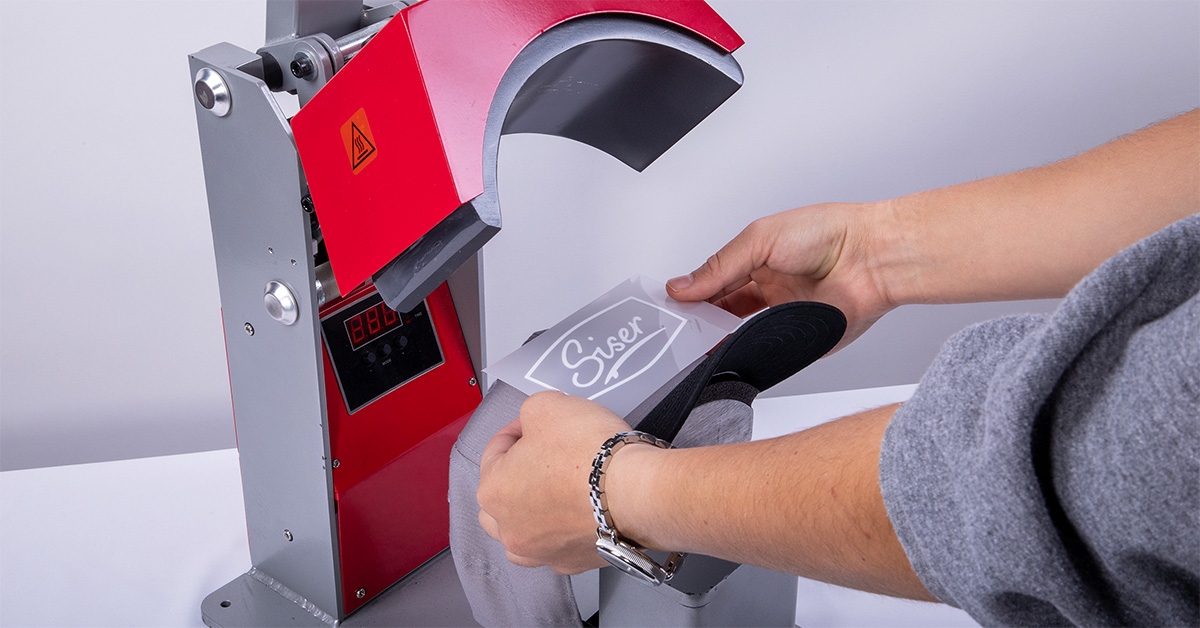
Step 7
Lastly, arrange the EasyWeed over the entire design. Cover with parchment paper and press for 5 seconds, then go ahead and peel the carrier hot. (Just be careful!)
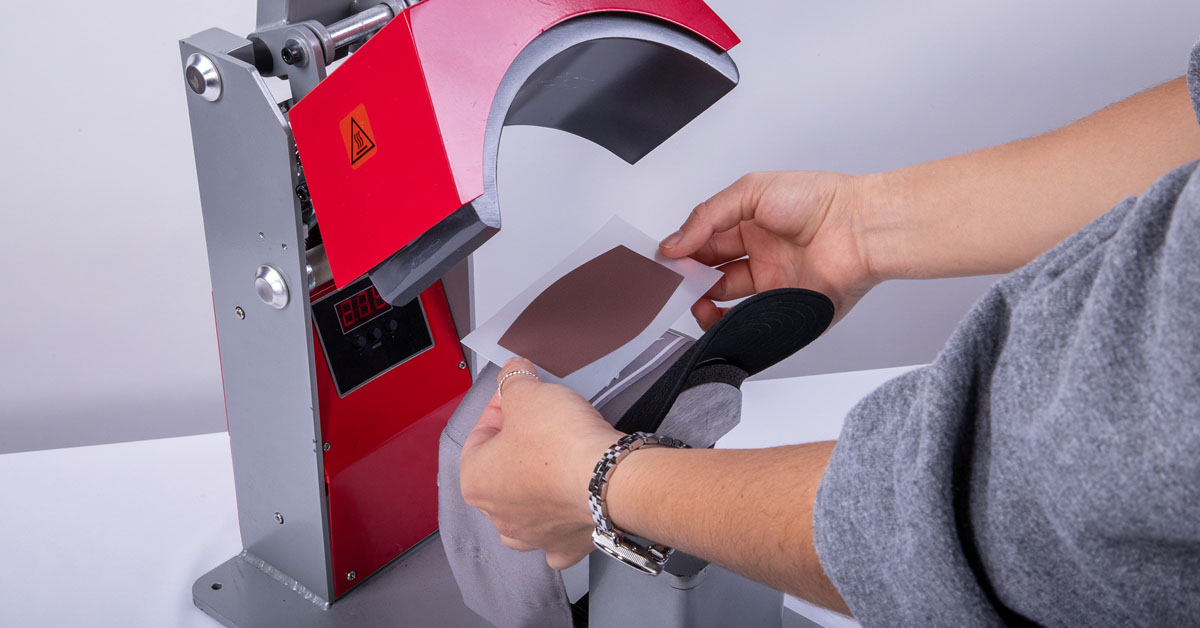
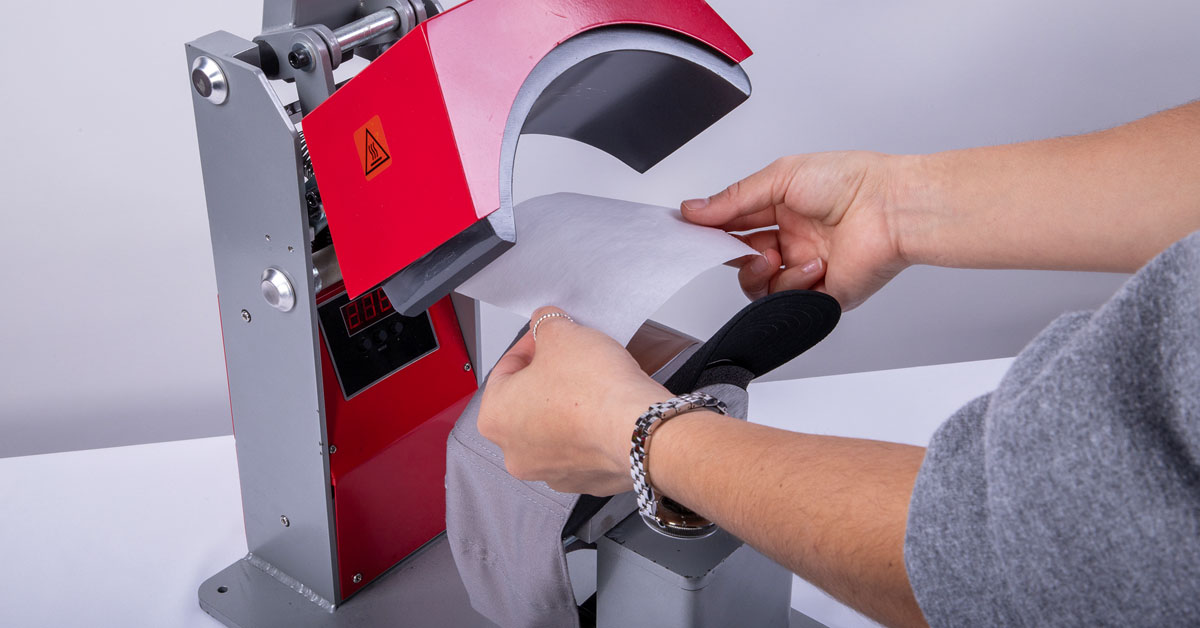
Step 8
Cover the patch with parchment paper again and press one last time for 10-15 additional seconds.
Ta-da— you now have a faux leather patch that looks shockingly convincing! This method works great anywhere you want to add a little leather flair… without using actual leather.
BONUS: Make a patch to be sewn or adhered later
But that’s not all! If you want to make a standalone patch so you can sew it or fabric-glue it onto a substrate later, we have a solution for you.
Simply cut an additional offset shape out of StripFlock Pro so that you have 2 using this material. Then instead of putting your substrate onto the heat press in Step 4, place one of the StripFlock shapes onto the platen with the adhesive side facing up. Arrange the second StripFlock shape on top of it with the adhesive side facing down, creating a “StripFlock sandwich”.
Press this “sandwich” for just 1 or 2 seconds, then allow it to cool before peeling the carriers. Now you can continue on with the remaining steps to create your standalone patch!
You can use your standalone patch to be sewn onto a hat later, adhered onto jeans using fabric glue, or even turned into fun keychains!
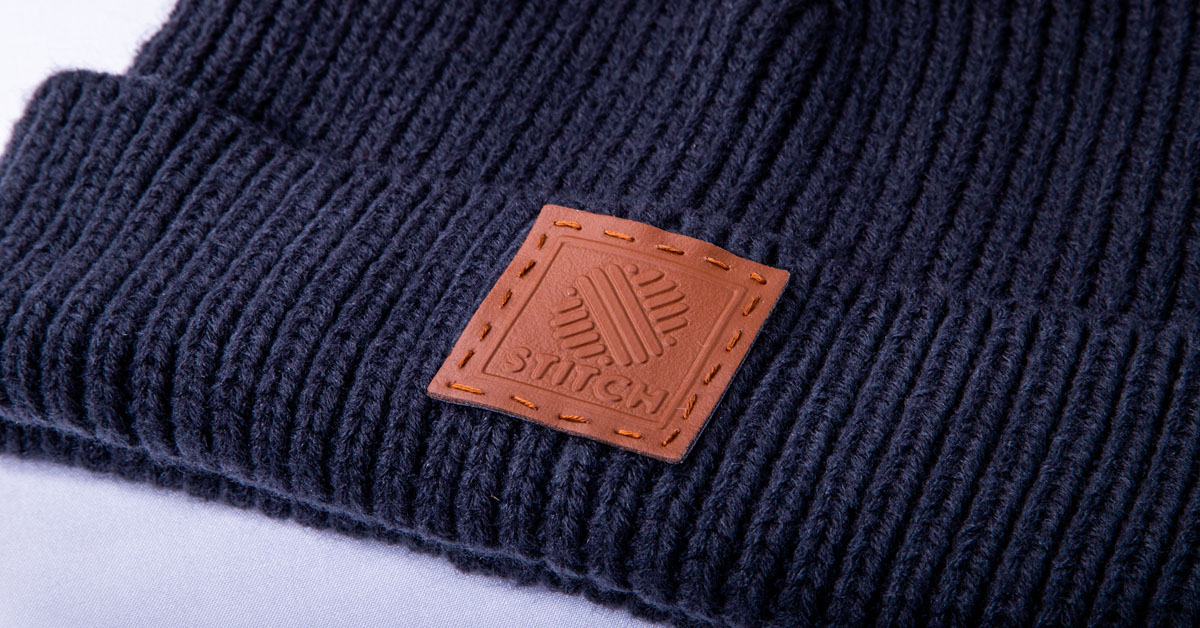
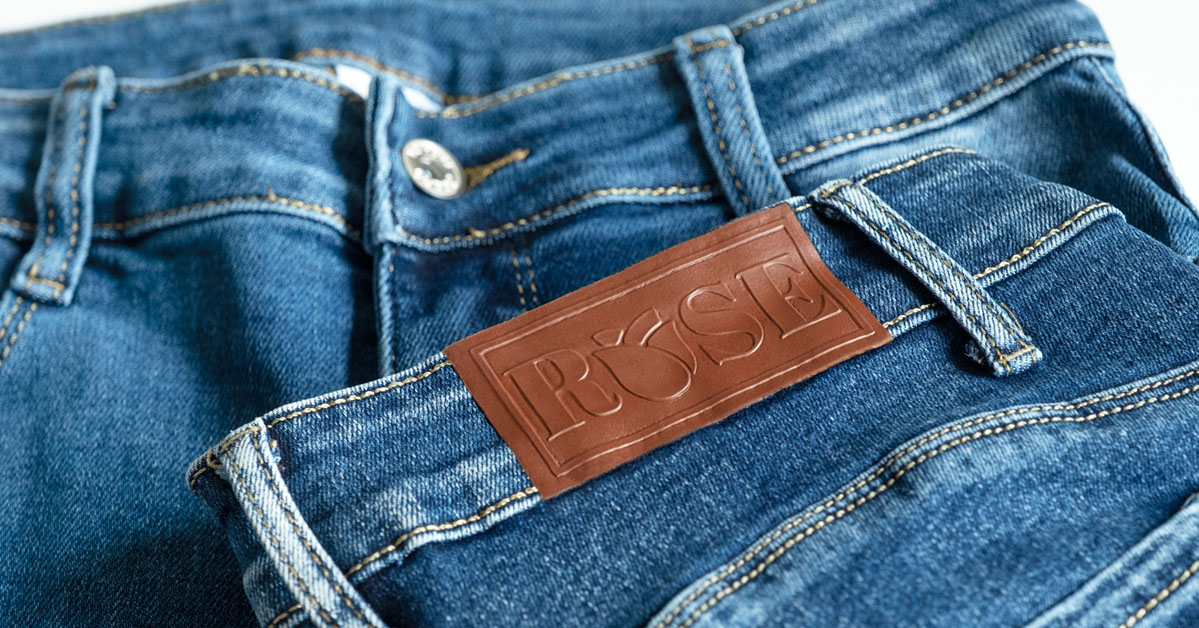
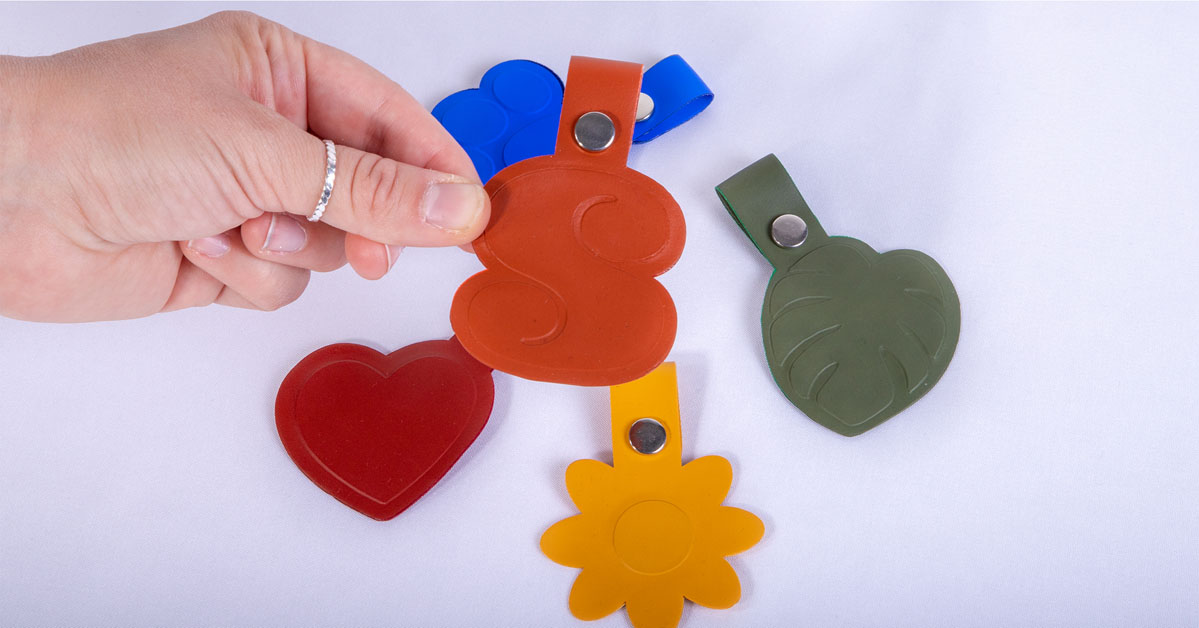
Note: We recommend applying faux leather patches onto substrates that typically don’t need to be washed (like hats and backpacks). While this method will work on shirts, pants, and other articles of clothing, washing machines can wear down the patch over time and cause the layers to peel.
Conclusion
Creating faux leather patches is yet another way to think outside the box with Siser®. By combining different HTVs, you can achieve unique effects like this without having to invest in additional decoration mediums. That’s what makes Siser materials so versatile!
What types of patches can you see yourself making using this method? Let us know in the comments!