
Guide to Leonardo® Apprentice
Creating in Leonardo® Design Studio can be both fun and productive with dozens of intuitive tools to use! However, not everyone has the time to use these tools to bring their artistic ideas to life. Enter Leonardo Apprentice: the AI-assisted tool to help creators of all skill levels jumpstart their designs!
What is Leonardo Apprentice?
Leonardo Apprentice is a generative art tool that uses AI (artificial intelligence) to turn your ideas into raster or vector images that can be used right inside Leonardo Design Studio!
The AI behind Leonardo Apprentice is trained primarily on open-source, publicly available images to “learn” how to create imagery. Leonardo Apprentice will do its best to interpret users’ prompts to create the artwork you’re looking for.
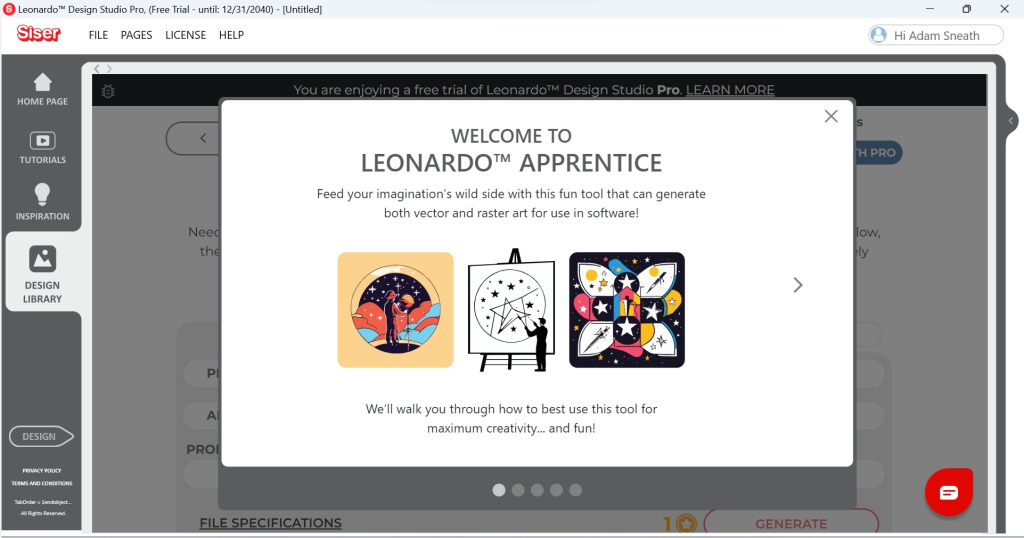
It’s important to note that AI art is by no means a replacement for human-generated content. Rather, Leonardo Apprentice is designed as a fun feature to assist creators and provide inspiration for their next piece of artwork.
Sound interesting? Let’s dive in!
Leonardo Apprentice Overview
Finding Leonardo Apprentice
To access Leonardo Apprentice, you’ll first need to make sure you’re signed in to your Siser account with Leonardo Design Studio. Once you’re logged in, simply navigate to the Design Library via the navigation bar on the left side of the screen.

Once you’re in the Design Library, look next to the search bar. You’ll see a blue button that says— you guessed it— “Leonardo Apprentice”! Click this to begin.
Image Types
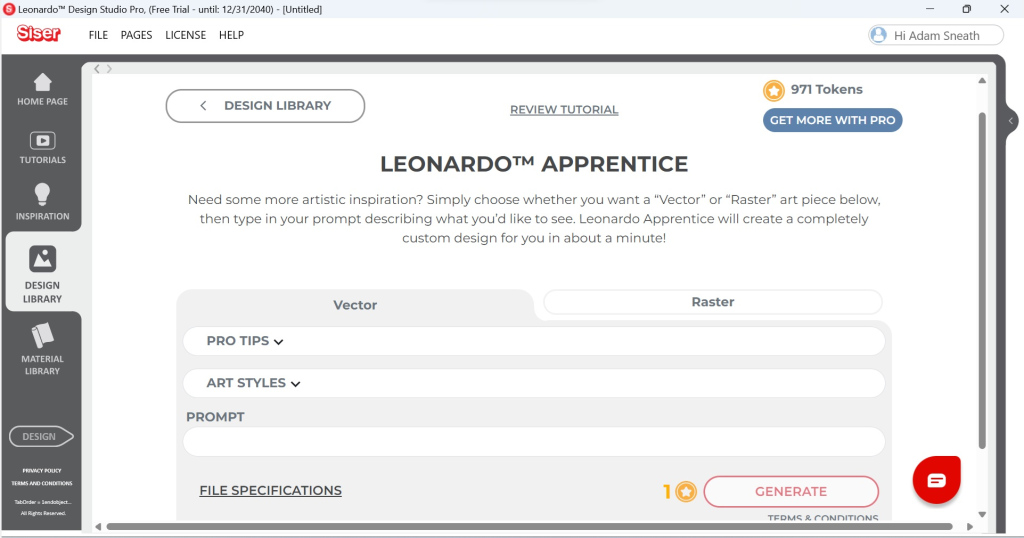
Welcome to the Leonardo Apprentice page! This is where you can type in your prompts to generate either a vector or raster image. What’s the difference? I’m glad you asked!
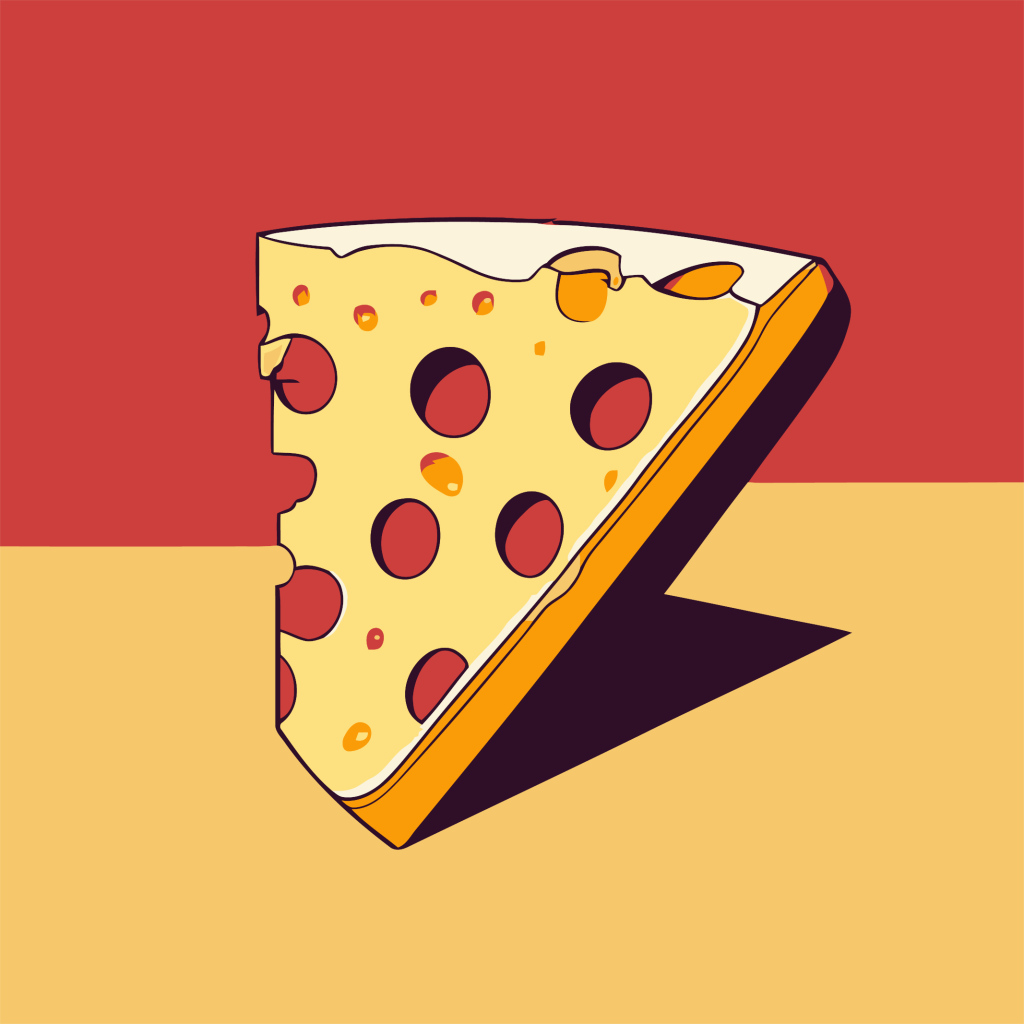
Vector artwork is when an image is made up of points and lines that allow it to be scaled to any size without losing quality. Vector images are typically made up of solid colors or simple gradients and can be recognized as cut lines.
SVGs are the most common type of vector images, but you may also see them as EPS, PDF, DXF, or other file types.
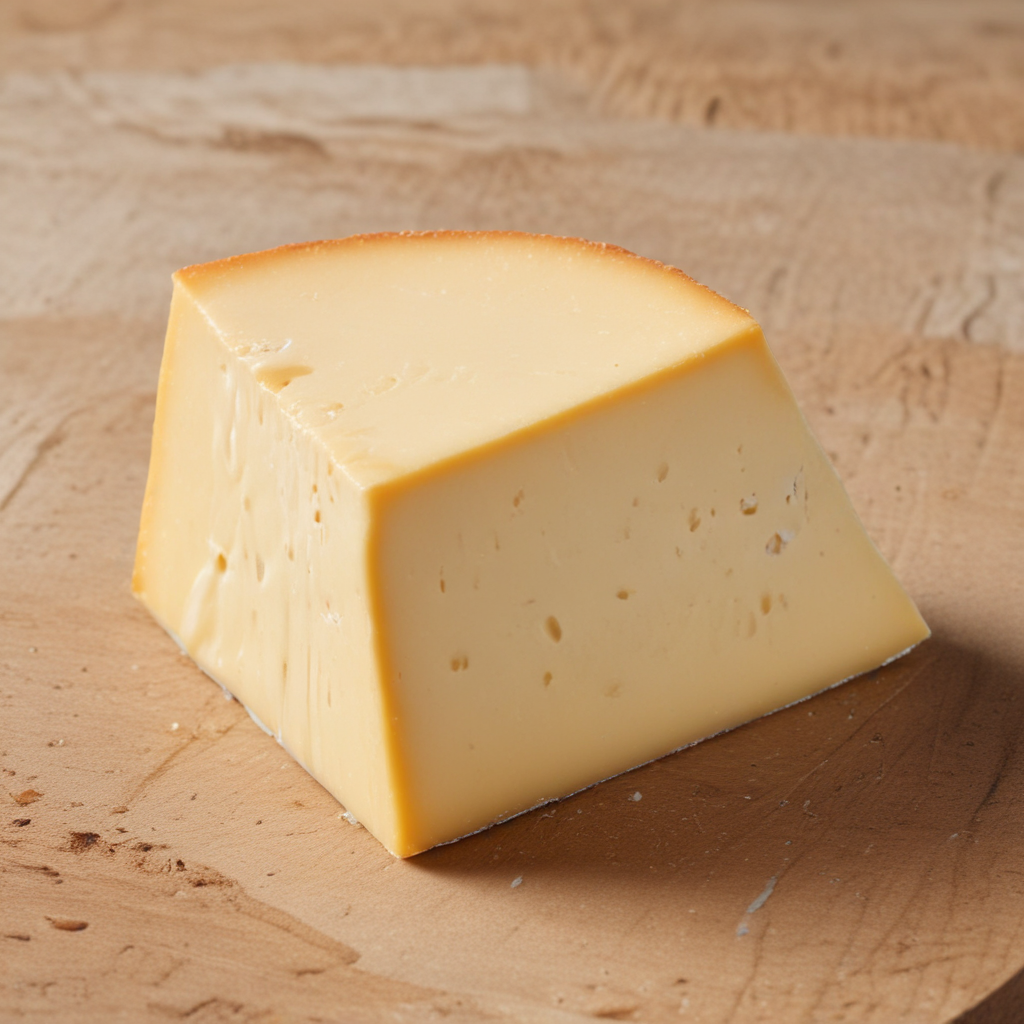
Raster artwork is when an image is made up of colorful pixels. Raster images allow for true full-color digital artwork, such as photographs. Print and cut projects frequently involve the use of raster images.
Some of the most common file types of raster images are JPG, PNG, and TIFF.
Token System
Now that you know about the two main types of file formats, you maybe itching to create with Leonardo Apprentice. But first we must discuss the Token system!
Using AI to generate images is a demanding process. To prevent Leonardo Apprentice from becoming overwhelmed, we use a Token system to generate prompts. Think of Tokens as the “currency” used to operate Apprentice.

Each prompt entered into Leonardo Apprentice uses 1 Token, regardless of a vector or raster request. Entering the same prompt twice will generate a new image and therefore uses another token, so think carefully before spending them!
All Leonardo Design Studio users (Basic and Pro) receive 10 free Tokens to use with Leonardo Apprentice. Pro users will also receive 30 tokens every calendar month! However, Tokens don’t roll over, so make sure you use them before the month is up.
You may be asking: “What if I run out of Tokens but want to keep using Apprentice?” Well, we have some good news for you: ALL Leonardo users, Basic and Pro, are able to purchase additional Tokens right inside the software!
Simply navigate to the “Tokens” tab next to the “Raster” tab and you’ll be presented with a new screen and pricing breakdown.
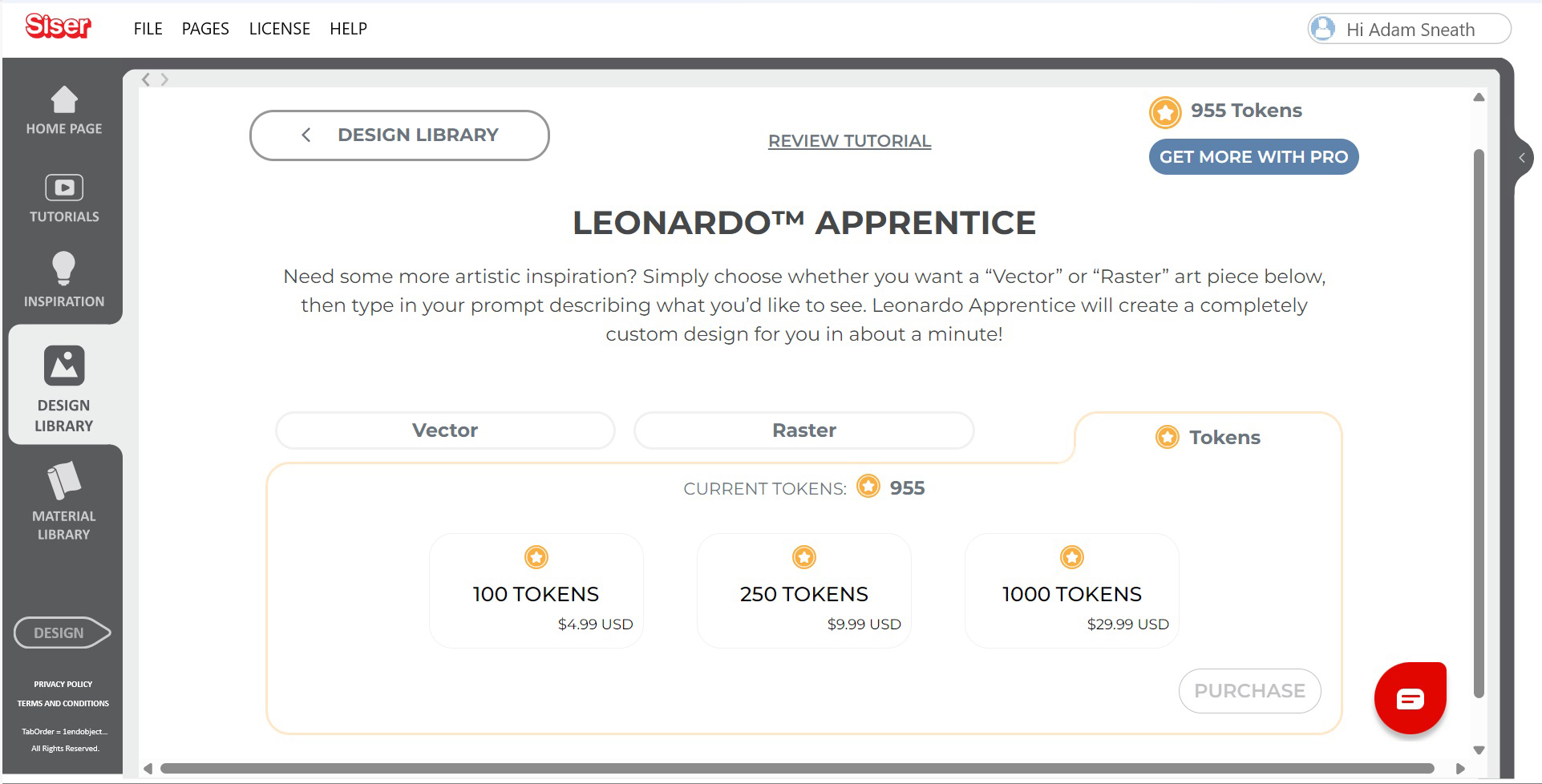
Tokens can be purchased in bundles of 100, 250, or 1,000 and can be used immediately to generate images with Apprentice. Best of all, purchased Tokens never expire!
Leonardo Apprentice Walkthrough
Now that you’ve got the gist of what Leonardo Apprentice is about, I’ll walk you through the process of using it for both vector and raster images!
Vector
When you select the “Vector” tab, you’ll notice that there is a “Pro Tips” and “Art Styles” dropdown. We’ll discuss the Pro Tips in a bit, but for now let’s look at the Art Styles.
Leonardo Apprentice allow you to choose between 3 different art styles for your vector image prompt: Simple, Medium, or Complex.
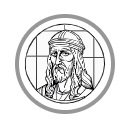
Simple
Simple will attempt to create an image using as few layers and colors as possible.
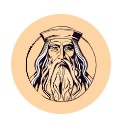
Medium
Medium will attempt to add more detail to the generated image and may contain several layers and colors.
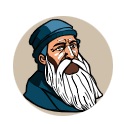
Complex
Complex will attempt to create an image with high detail and may contain dozens of layers and colors.
For this demonstration, I’ll be using the “Medium” image style. Underneath is the “Prompt” text field. This is where you really make the magic happen!
Type in the image that you’d like Leonardo Apprentice to generate. It’s best to keep the requests relatively simple as Apprentice can get a bit confused with lengthy or highly specific prompts.

With a prompt typed in, hit “Generate” and let AI do its thing. You’ll also get to enjoy some AI generated vector images of clocks while you wait!
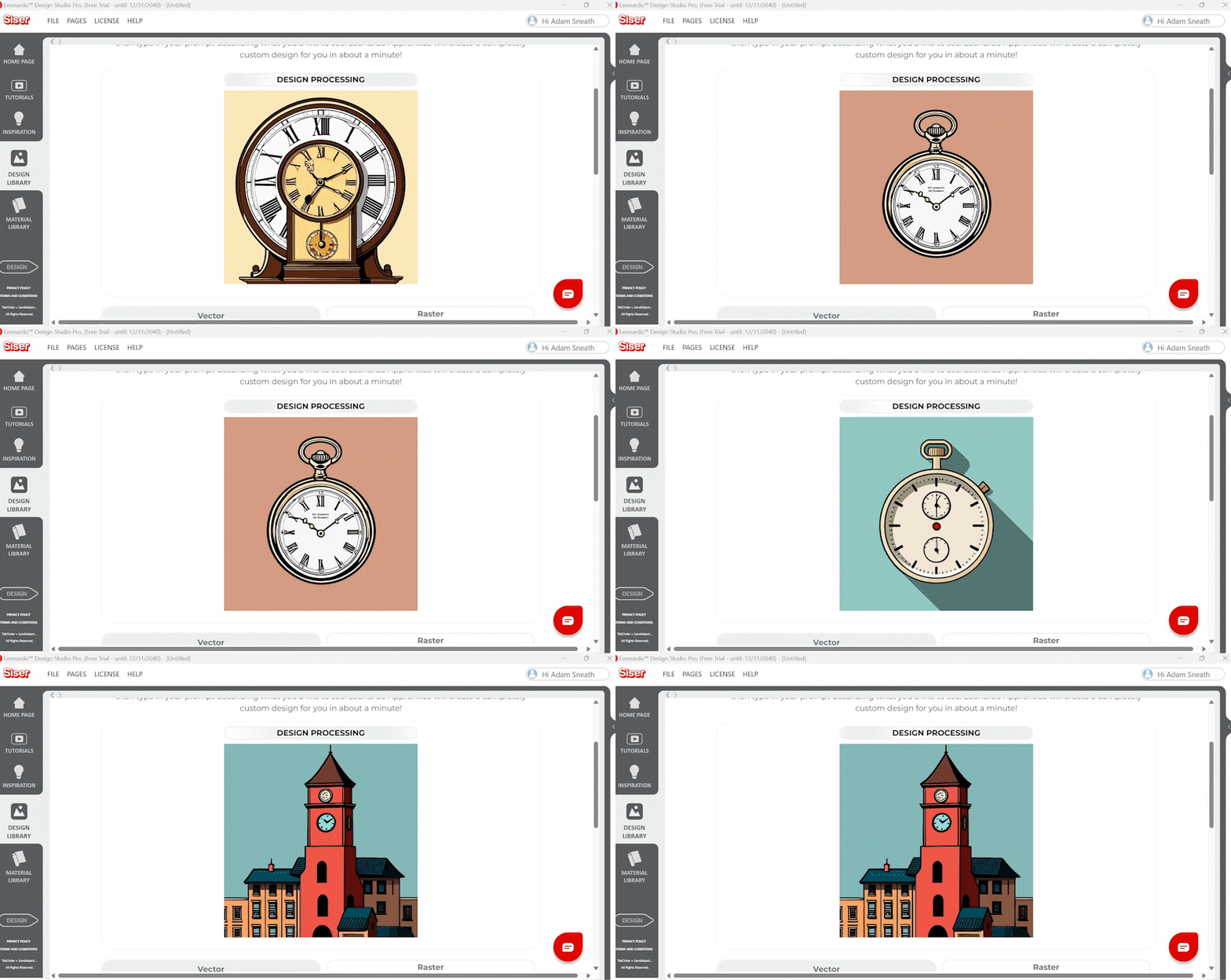
After a brief loading screen, Leonardo Apprentice will present your image! If you’re happy with the results, you can click “Download” to save it to your computer or “Open” to drop it right onto the Design Page to edit!
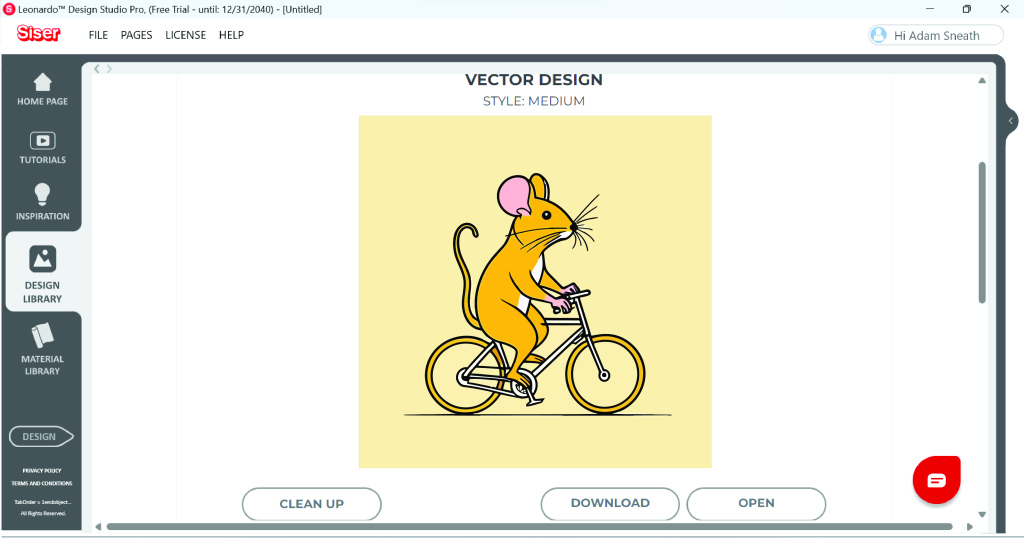
If it’s looking a little messy (it is AI art after all), you can also click “Clean Up” to simplify it.
In the Clean Up window, the slider on the bottom can be adjusted to your liking. The higher the percentage, the more the image will be simplified, and the fewer colors will be used. Click “Simplify” to see a preview, and when you’re happy with the results, you can Download or Open the image.

Grouping by Color
If you do drop your new vector artwork into the Design Page, you may notice that the layers are not grouped by color bur rather all lumped into one mega-group. I have a quick trick to fix this!
First, right-clock and ungroup your image (or press CTRL+U / CMD+U). Then click the “Layers” tab to view all the colors in your image. Select any one of the colors/layers and then click the “More…” option at the bottom of the panel.
Click “Select current color” and Leonardo will expand your selection to include every layer that matches that color! Now you can press CTRL + G / CMD + G to group the colors together. Repeat for the remaining colors until all are grouped!
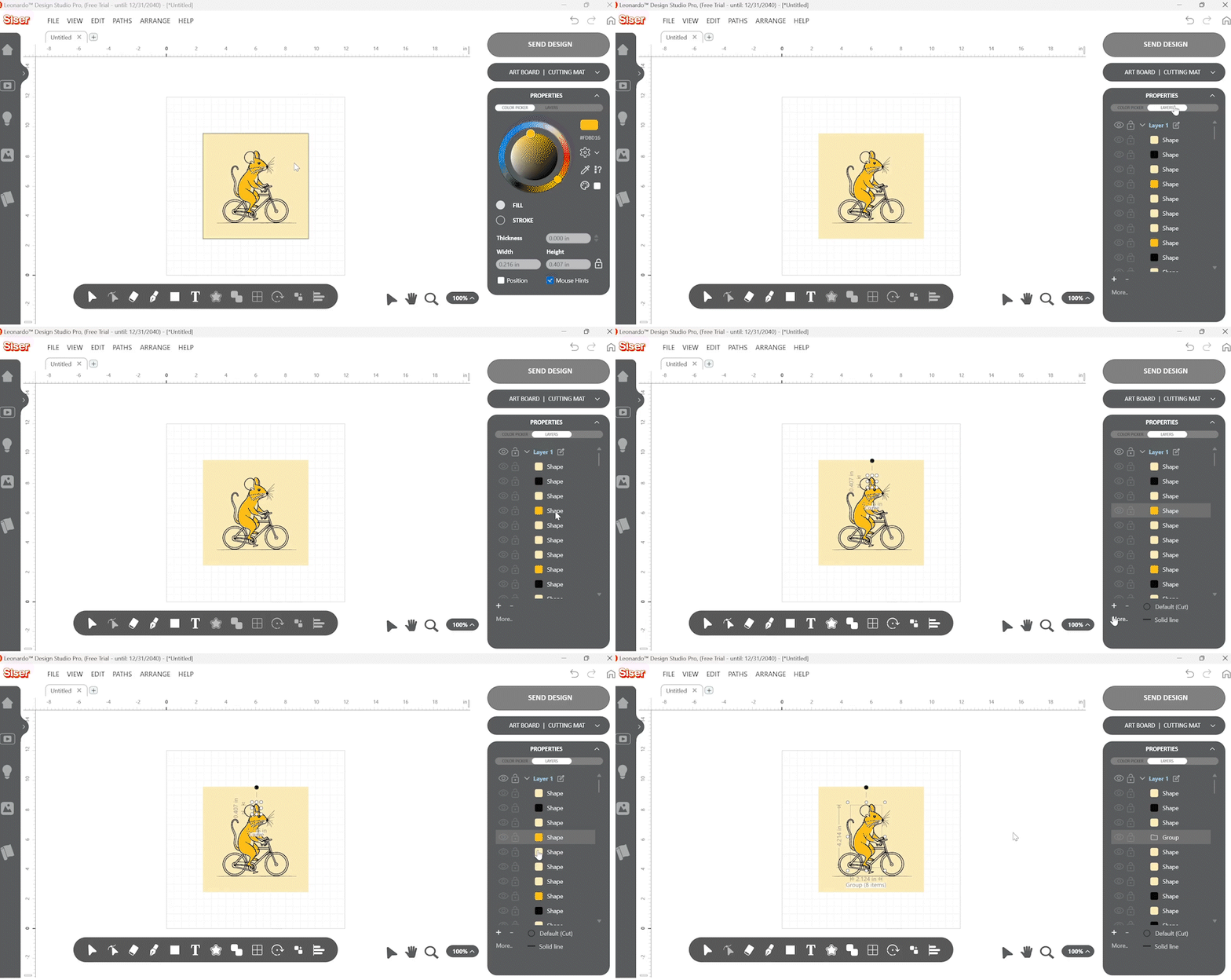
And there you have it— you’re ready to cut! But before you start having Apprentice crank out vector images for you, there’s some Pro Tips we should discuss!
Vector Pro Tips

Use Vector for scalable art or cut files.
Like we discussed before, vector images can be resized without losing quality and contain cut lines that can be recognized by cutters!
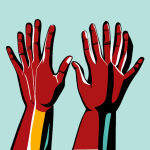
AI isn’t great with limbs.
Keep in mind that Apprentice may generate a person with extra fingers or an animal with a questionable number of legs.
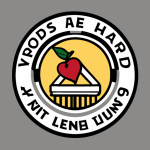
Avoid images with words.
AI also isn’t the best when it comes to text. We recommend staying away from prompts that will generate words, like signs, logos, or banners.
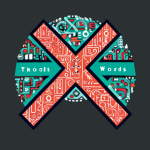
Keep it simple!
You’ll have the best results if your prompts aren’t too specific. Keep them short and to the point!
Now you’re ready to create cuttable vector images with Leonardo Apprentice! But if you want to create full-color raster images, keep reading!
Raster
Back on the Leonardo Apprentice page, clicking the “Raster” tab will bring up a similar screen to the Vector tab, without the Art Styles dropdown.
Generating raster images works mostly the same way as vector images: simply type your prompt into the text field and hit “Generate”! Just like with vector images, short and simple prompts will give a better result.
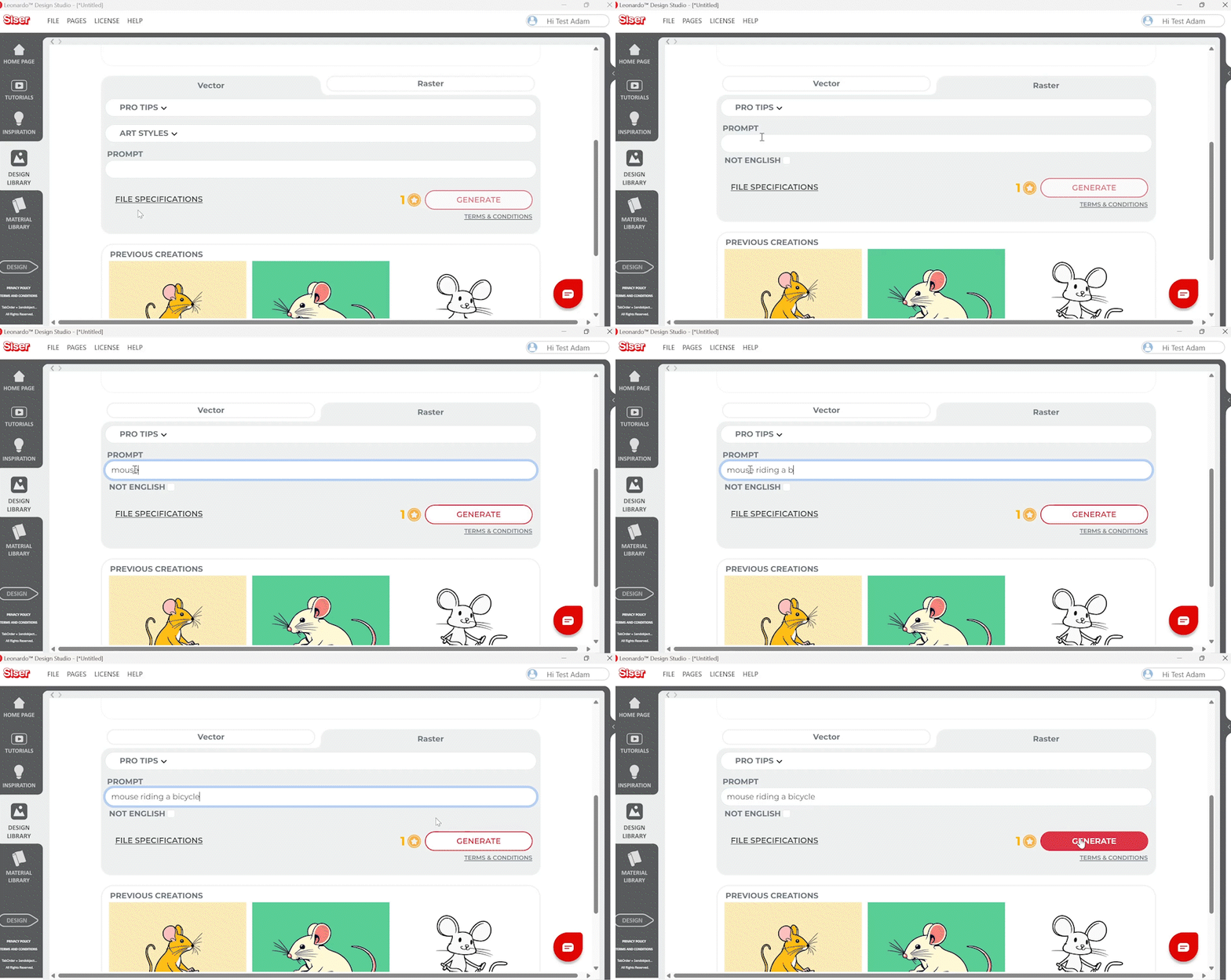
This time, you get to enjoy a brief loading screen featuring raster images of clocks! Fascinating!

When Leonardo Apprentice is done processing your prompt, it will present your image!
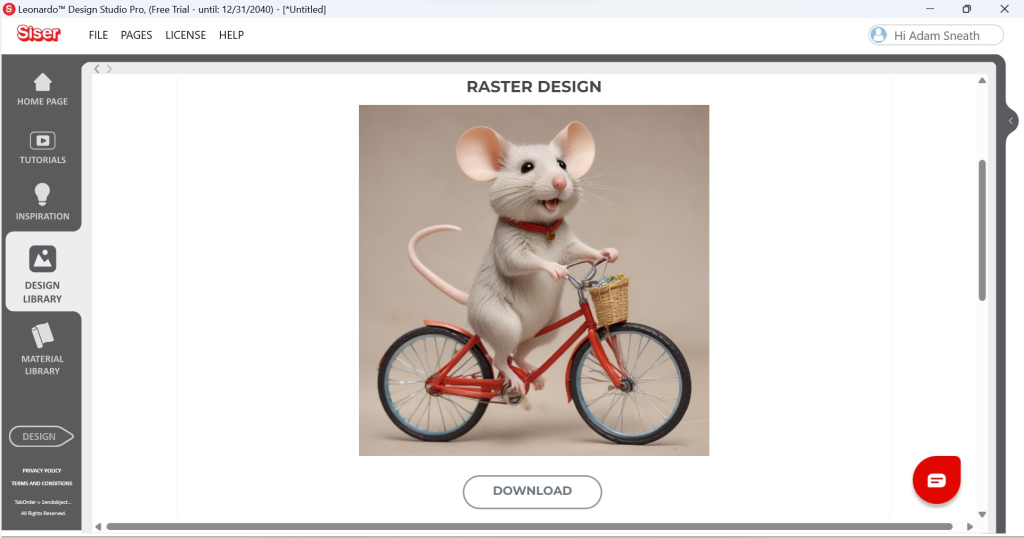
Because there are no layers in a raster image, there’s no Clean Up tool needed here. If you’re satisfied with Apprentice’s creation, click “Download” to save it to your computer!
After downloading, you can then Import your image into the Design Page within Leonardo and set it up for a Print & Cut design!
Raster Pro Tips
In addition to the vector Pro Tips, it’s good practice to keep the following in mind when generating raster images.
Use Raster for Print & Cut.
Raster images don’t contain layers or cut contours, but they work great for printing full-color designs!
Narrow your request.
Prompts with multiple subjects may cause Apprentice to combine or partially ignore them.
Add a specific art style to the end of your prompt.
You can change the art style of the generated image by adding certain words to the end of your prompt like “cartoon”, “sketch”, or “realistic”.
Type in English for best results.
Leonardo Apprentice can understand multiple languages, but prompts entered in English will work best!
Now go ahead and create those full-color raster images with Leonardo Apprentice!
Leonardo Apprentice Video Tutorial
Need to see a more visual walkthrough? We got you! Check out our video below to see Leonardo Apprentice in action.
Ready to try Apprentice for yourself? Fire up Leonardo Design Studio to create with it now or click the button below to download the software for free!