
How to do the Knockout Method in Leonardo®
If you’ve been a fan of Siser® products for a while, then chances are you know that many of our materials are layerable. HTVs like StripFlock® Pro, Sparkle™, Aurora™, and those in the EasyWeed® family can all be layered on top of one another for easily creating multi-color designs!
But there are also many materials that cannot be layered. HTVs such as Glitter, Brick® 600, Holographic, and Easy® Puff prefer to adhere directly to fabric, and may not perform as expected when used as a base layer in a multi-color design.
Does this mean that those non-layerable materials can only be used in single-color designs? Of course not! Here at Siser, we love to use what we call the “knockout method”. This technique involves knocking out the top layer of the design from the bottom layer, creating negative space that gives the illusion of a layered design like seen below.
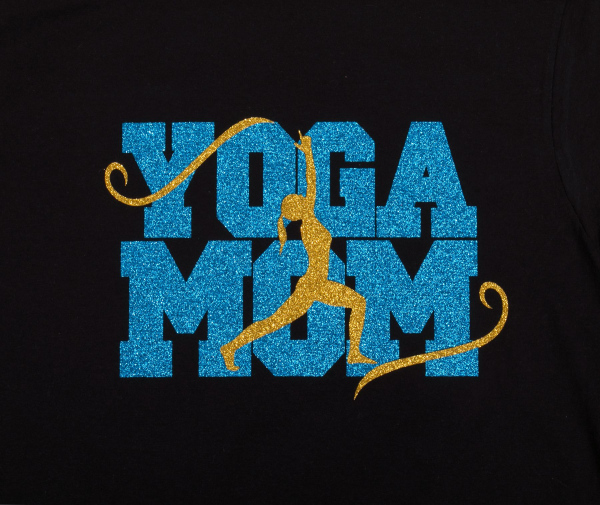
Back in 2020, Lily created a great blog post that shows how to create that fake layered look using Silhouette Studio. Her post is still incredibly relevant and helpful, but now that we have our own design software (Leonardo Design Studio), we figured it was time to create a follow-up blog post on this handy technique.
So without further ado, let’s discuss how to do the knockout method using Leonardo Design Studio!
Step 1: Importing Your Design
First things first: you need to get your design into the software! Open Leonardo Design Studio and click File > Import.
TIP: You can also visit the Design Library within Leonardo and use one of the thousands of free SVGs available!
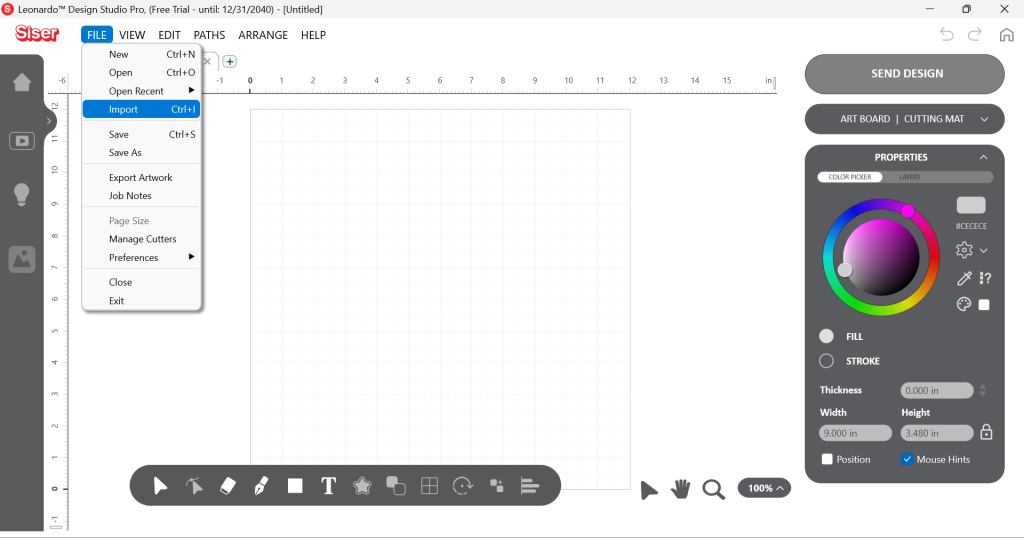
Find the desired SVG and click Open to drop it onto your Artboard as Editable Artwork. I’m using a design I created earlier using the Text on Arc Tool. (Via Leonardo Pro)
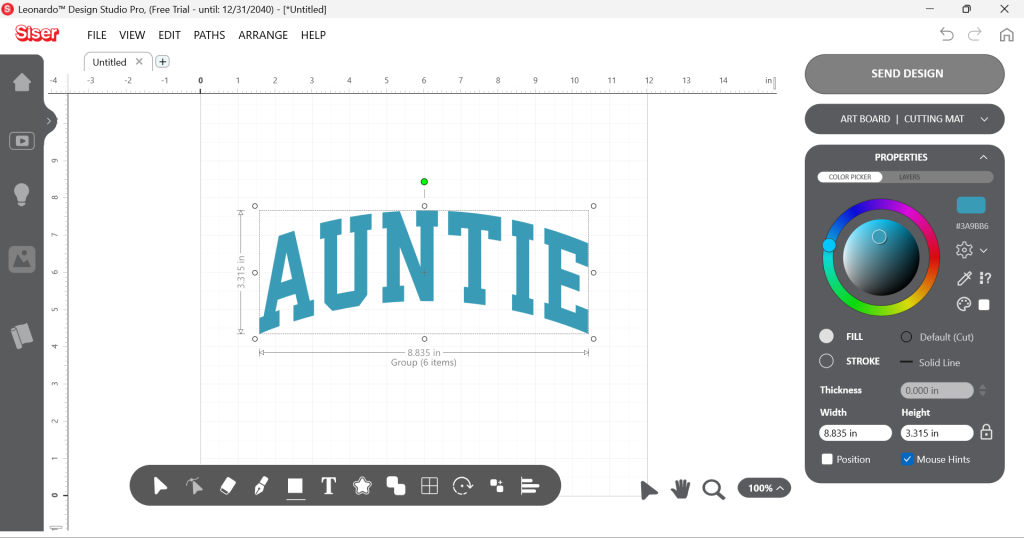
Step 2: Creating an Offset
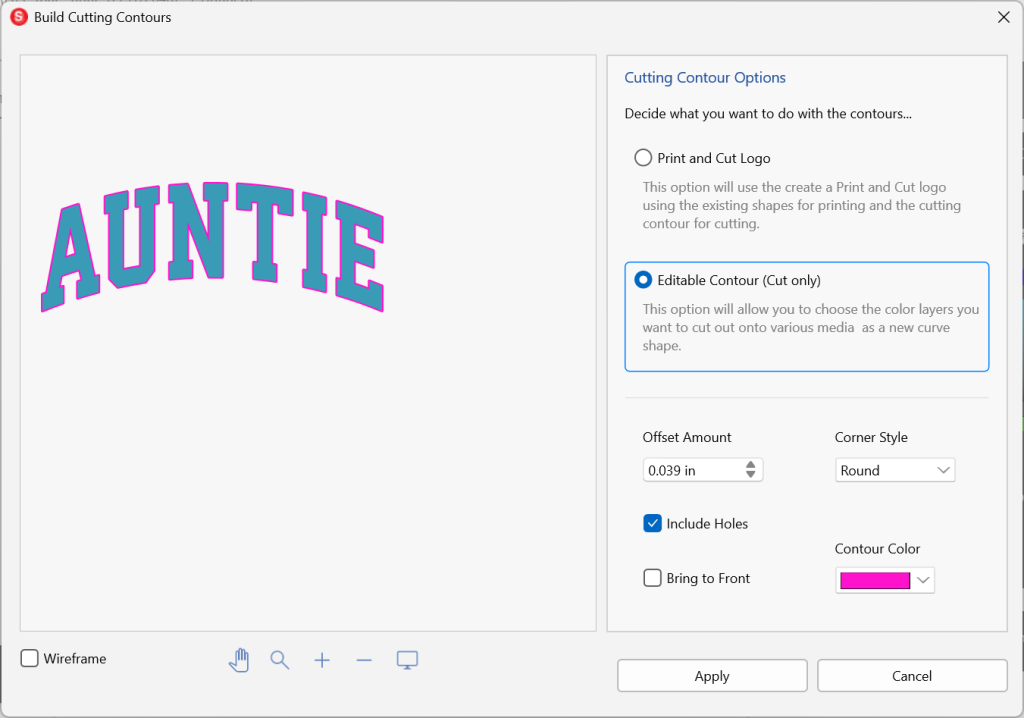
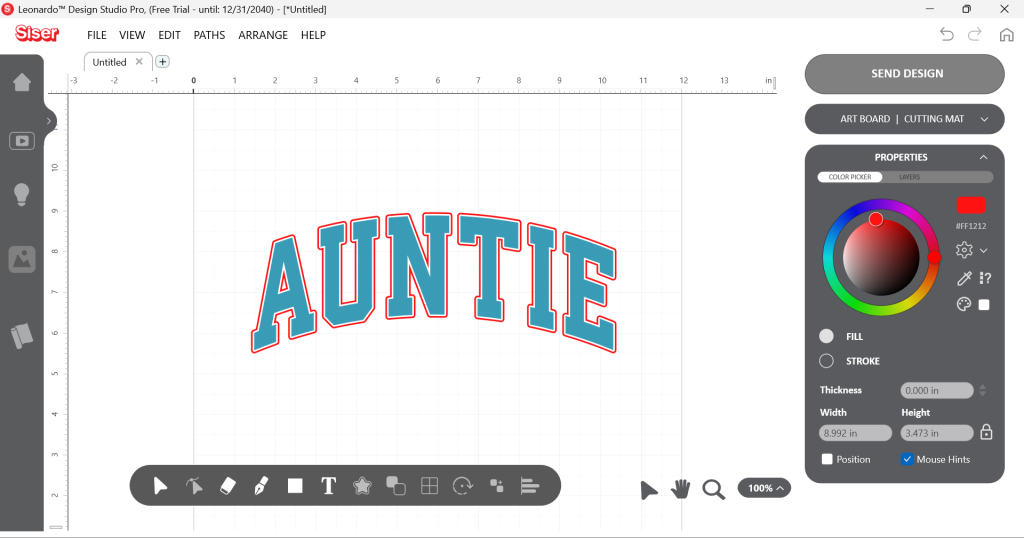
Select the design and click the Build Contours Tool. From here, we’ll want to make sure that the Editable Contour (Cut Only) option is selected. Increase the offset a bit to create an outline around the design.
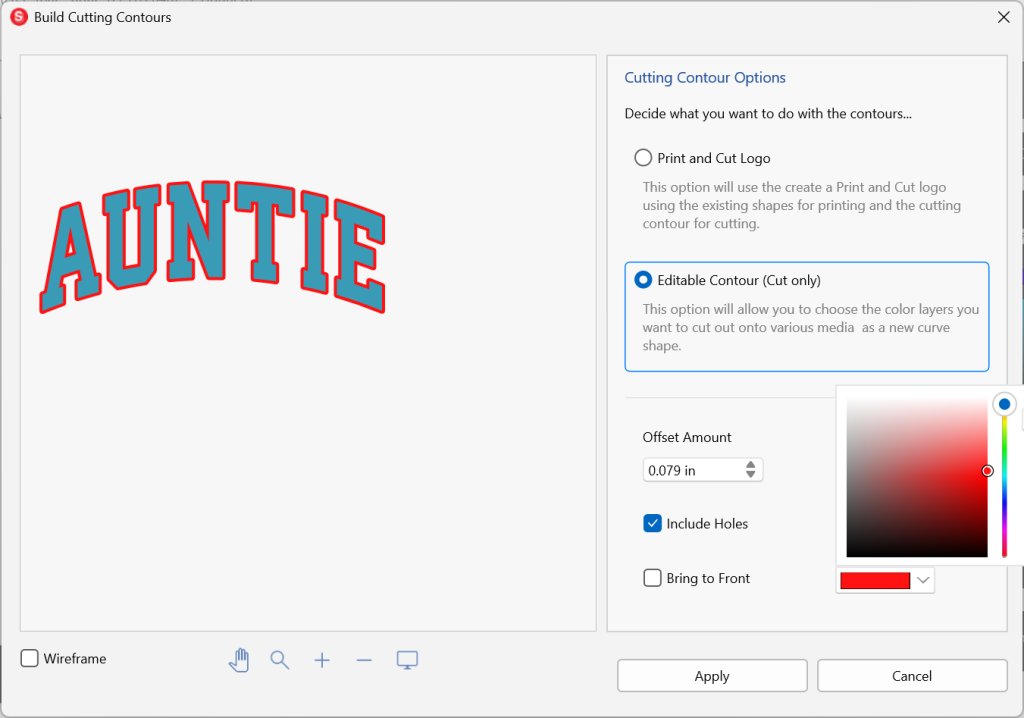
Make sure Include Holes is checked and then Apply the contour offset.
TIP: I recommend changing the color of the contour as well. In this case, I used red since it clearly stands out.
Step 3: Knocking Out the Offset
With your new offset now on the artboard, it should look a little something like this.
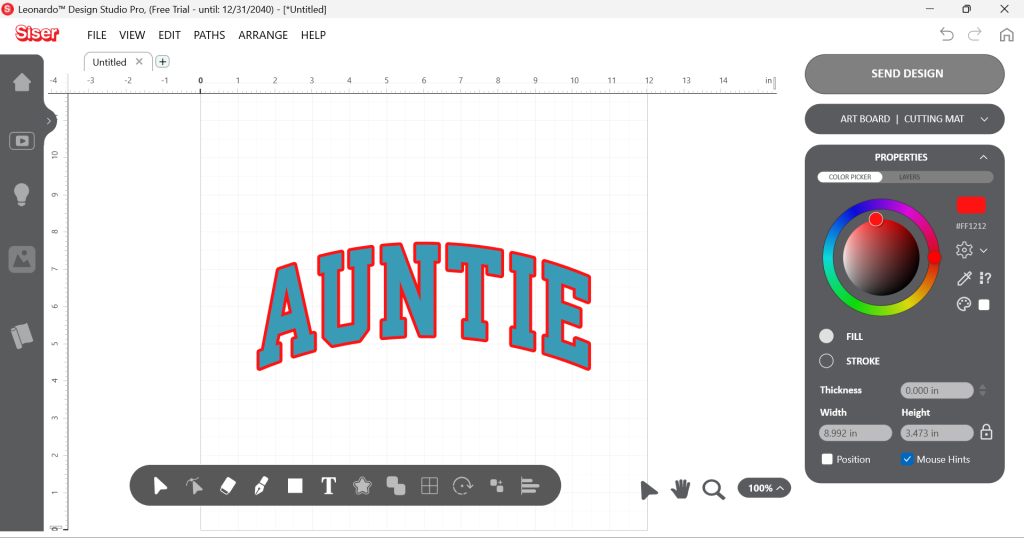
If you move the top layer away from the bottom one, you will see that the outline is actually a solid shape. Now if we were using a layerable material, like EasyWeed, we could stop here and cut the design. But since I want to use Glitter, we’ll need to go ahead and “knockout” the top layer from the bottom.
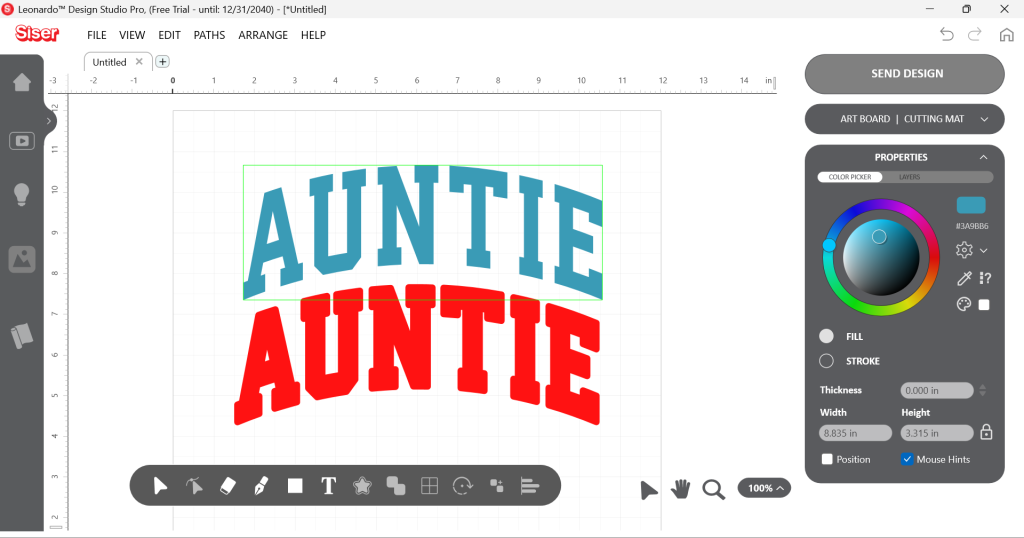
If you moved the layers, go ahead and re-center them by selecting both and pressing both the C and V keys on your keyboard. Then, with both layers still selected, hover over the Weld Tool and select the Stamp (keep) option.
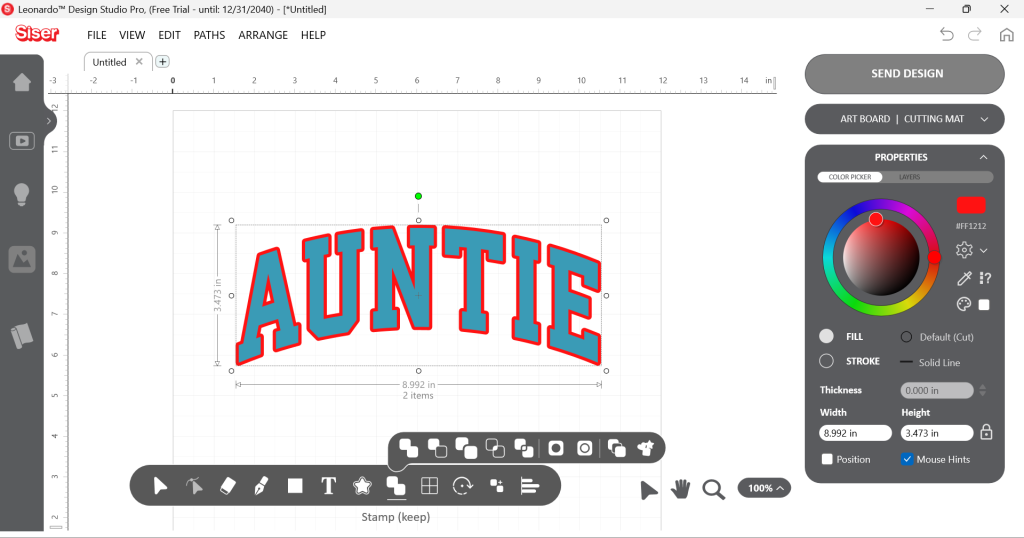
That’s it! With just a click, you’ve successfully completed the knockout method. You can now separate the layers to see the result.
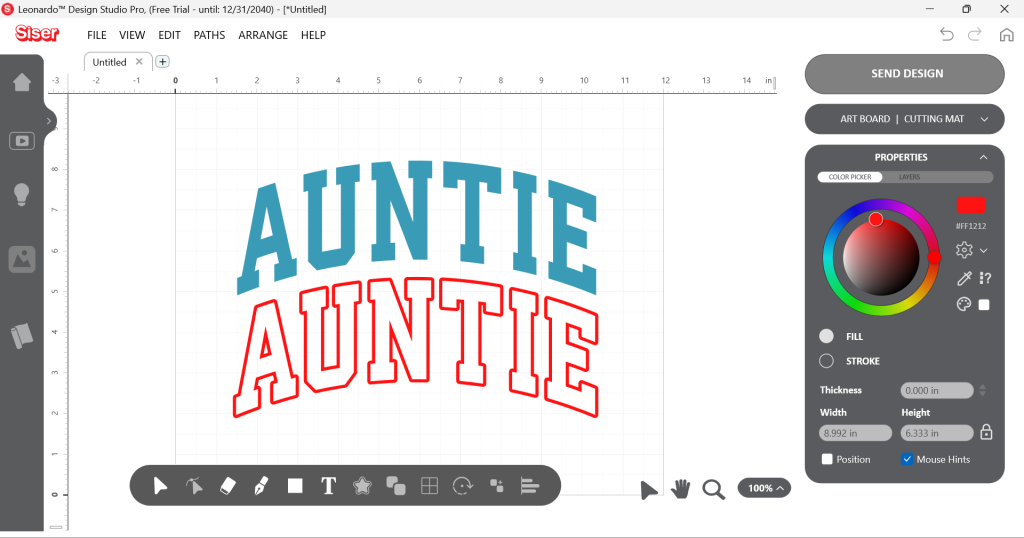
Step 3.5: Creating a gap between layers (optional)
With the steps above, we’ve successfully created a knockout design that has both layers perfectly butted up against each other. However, if you want to give some “breathing room” between the two layers, we can do an additional knockout to create a gap. This is useful for helping the design feel more flexible and also gives you wiggle room when applying in case the layers don’t align perfectly.
NOTE: This step is optional. If you don’t want to create a gap, go ahead and skip down to Step 4.
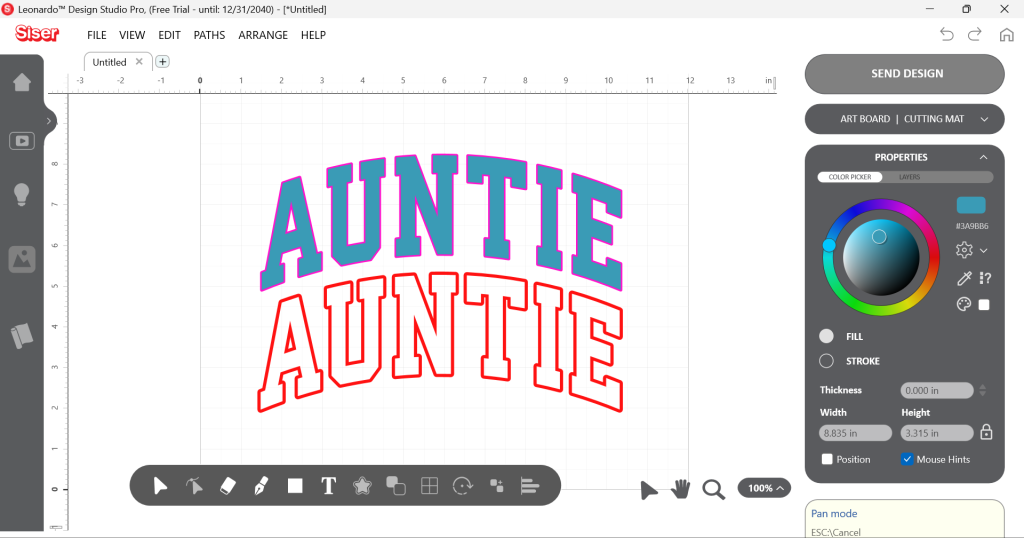
To create a gap, select your original layer (not the outline) and click the Build Contours Tool again. You’ll then want to create another offset contour that’s slightly smaller than the one you created earlier.
Your Artboard should now look something like this:
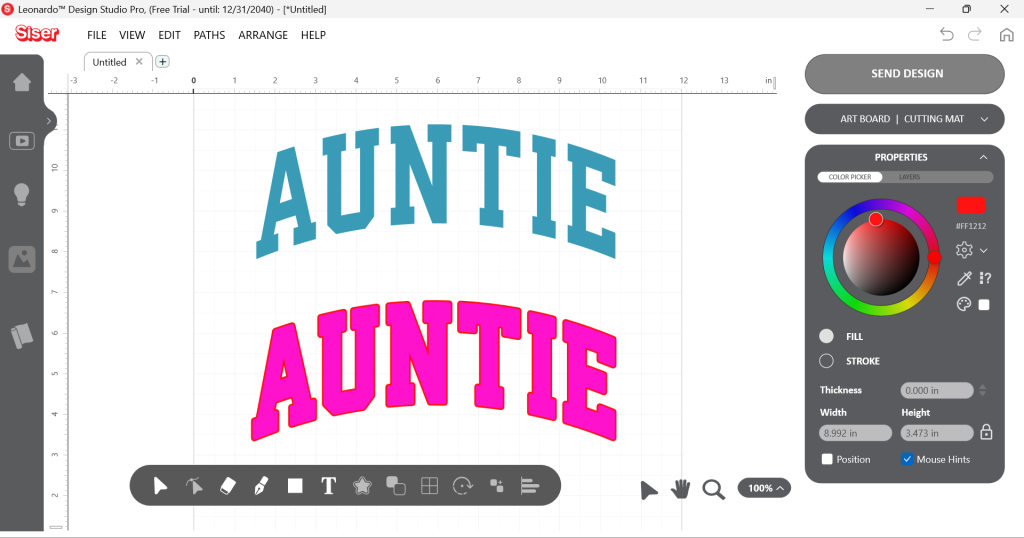
Go ahead and move the original layer out of the way, then select both of the offset contours and center them by using the C and V keys.
With both offset contours now stacked and selected, you can hover over the Weld Tool again and this time select Remove Front.
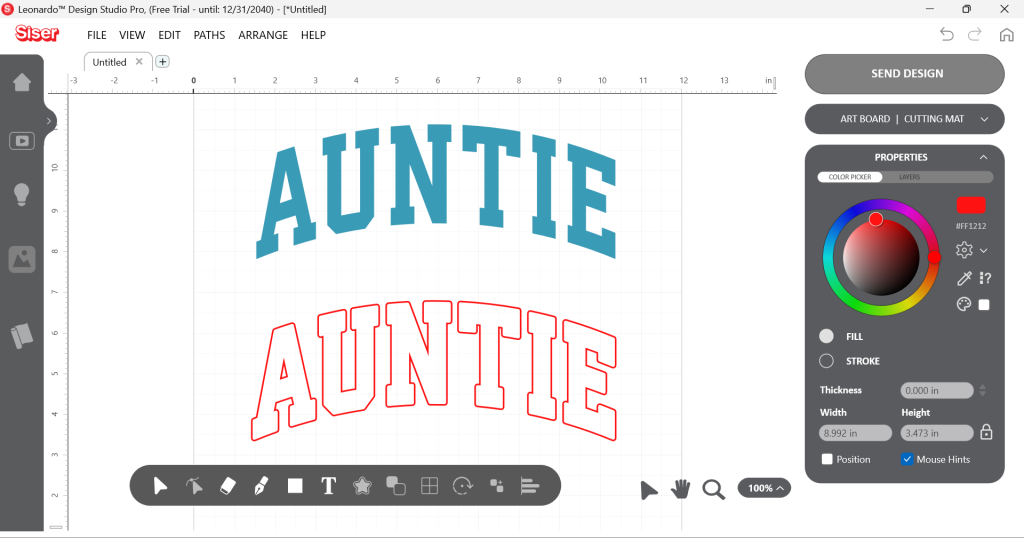
It may look the same as before, but look what happens when we re-center the 2 layers…
You now have a slight gap between the two layers! The gap will now reveal the color of the garment in between, effectively making this now a 3-color design! I like this look, so I’ll keep the gap to finish my project.
Step 4: Cut and Apply
Now that you’ve successfully used the knockout method on your design, you can go ahead and cut it out using your Romeo® or Juliet® cutter!
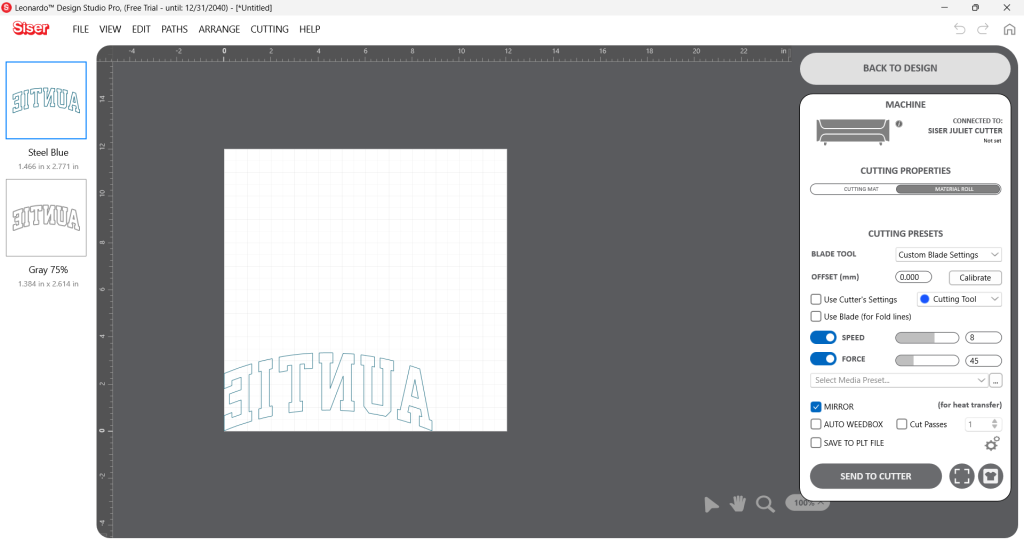
When it comes to application, the good news is that it doesn’t matter which layer gets applied first, since both layers will be applied directly to the fabric. Just make sure you apply one at a time- you wouldn’t want to accidentally apply on top of one of the carrier sheets!
As Lily mentioned in her blog post, you’ll also want to use short presses. Rather than applying each layer for the full time, try “quick tacking” down the colors for 1-3 seconds. This prevents the fabric from shrinking too much, which could cause alignment issues. When you’ve tacked down all the layers, then you can go ahead and press for the full duration.
TIP: Make sure you check your material’s application instructions beforehand! You can do so here on SiserNA.com by hovering over the Materials tab at the top of this page and navigating to your HTV.
After both colors have been applied, it’s time to enjoy your creation!

Now you can create garments that are absolute knockouts!
Just because a material isn’t layerable, doesn’t mean you can’t get the layered look! With a little bit of design tweaking in software, you can easily do the knockout method and enjoy multi-color creations with just about any HTV.
Want to see how to easily create a 2-layer text design from scratch using the knockout method in Leonardo? Check out our YouTube video below: