
How to Use Leonardo® Design Studio by Siser®
Are you ready to create like an innovator? Leonardo® Design Studio takes its name from one of history’s greatest minds – a Renaissance master painter, engineer, architect, and inventor whose genius still inspires us today. We chose Leonardo da Vinci because if he were here now, he’d probably use Leonardo Design Studio to take his ideas even further. Plus, his Italian roots make him feel like family to us here at Siser®. We link to think we’ve built a creative tool that would make him proud – and maybe even a little impressed! Since he’s not here to give us the thumbs up, how about we show off to you instead?
Let’s dive in and explore how to set up and start creating with Leonardo Design Studio – whether you’re working with Romeo, Juliet, or planning your next HTV or PSV project.
Compatibility
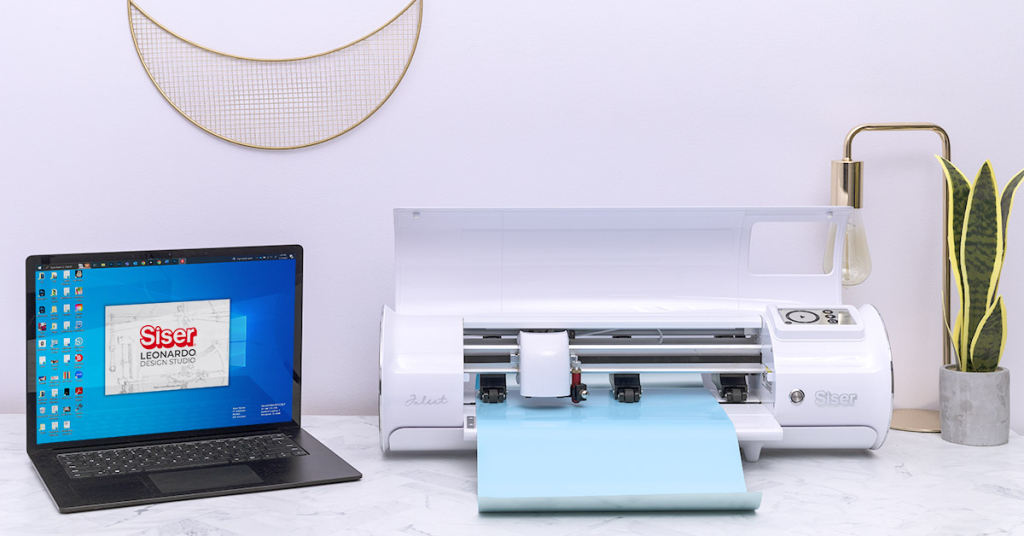
Leonardo Design Studio works on both Windows® and Mac®. While there are slight differences between teh two versions, all the main tools and features work seamlessly on your preferred system
- Windows® 8.1 and higher
- macOS® 10.15 and higher
Right now, Leonardo Design Studio is exclusively for use with our Romeo and Juliet high-definition cutters.
Prefer designing in another program? No problem! You can still import your artwork into Leonardo Design Studio if it’s in one of these file types:
- .SVG
- .PNG
- .JPG
To import a file, go to File > Open > Import File in the dropdown menu. But before we jump ahead, let’s make sure your Leonardo Design Studio account is set up.
Setting Up Your Leonardo Design Studio Account
When you purchase a Romeo or Juliet cutter from a Siser retailer, distributor, or reseller, Leonardo Design studio comes free of charge! You’ll just need to activate your account to get started. You can use the setup link in the box with your cutting mat, or visit the Siser website to download the software. Even if you don’t own a a Romeo or Juliet you can still download the software and take it for a test drive!
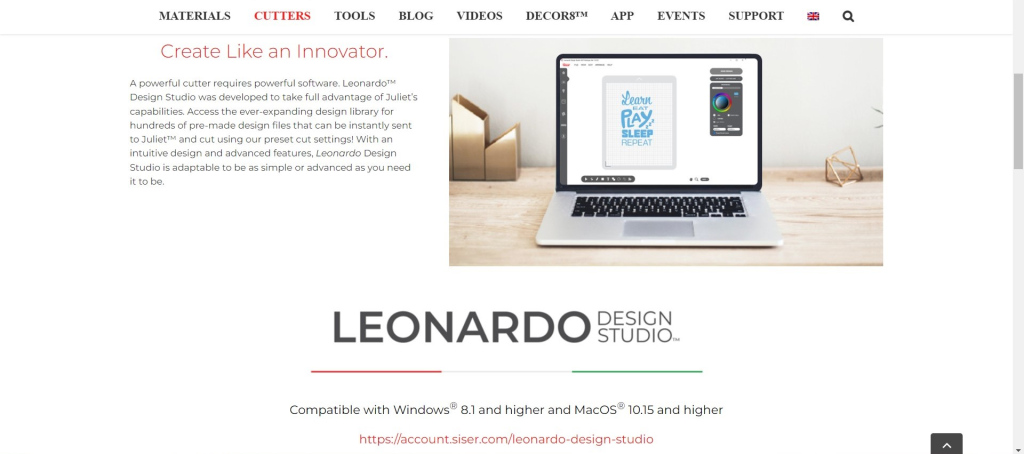
Once installed, open Leonardo Design Studio and click Sign Up. You’ll get a verification code in your email.
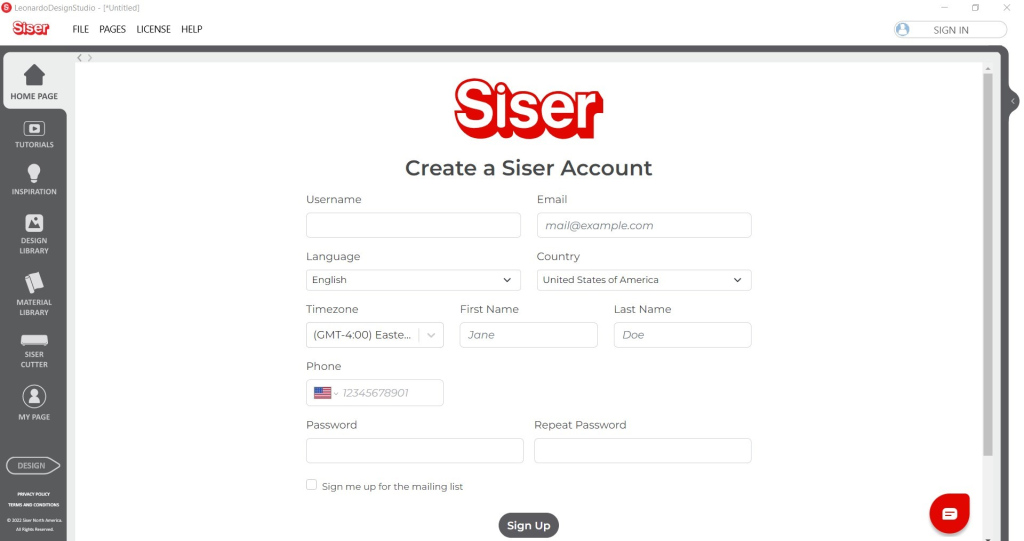
Enter the code and your account is ready to go! From the top-right dropdown menu, access your Account page to update details like your email address, phone number, and cutter registrations.
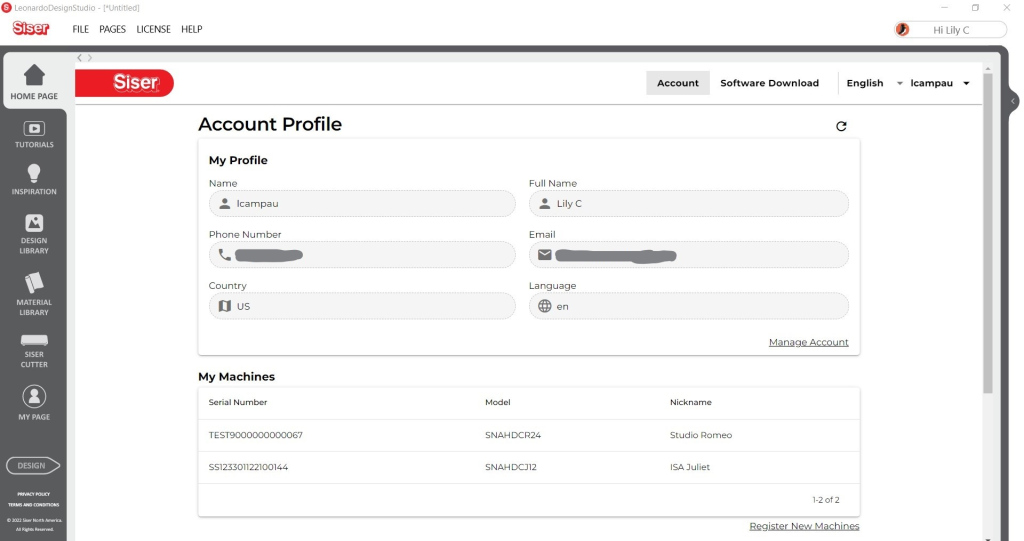
Your Account Profile section shows your most recently used Design Library files, and you can register or remove a cutter here. Now that you’re signed in, let’s explore the main screens in Leonardo Design Studio.
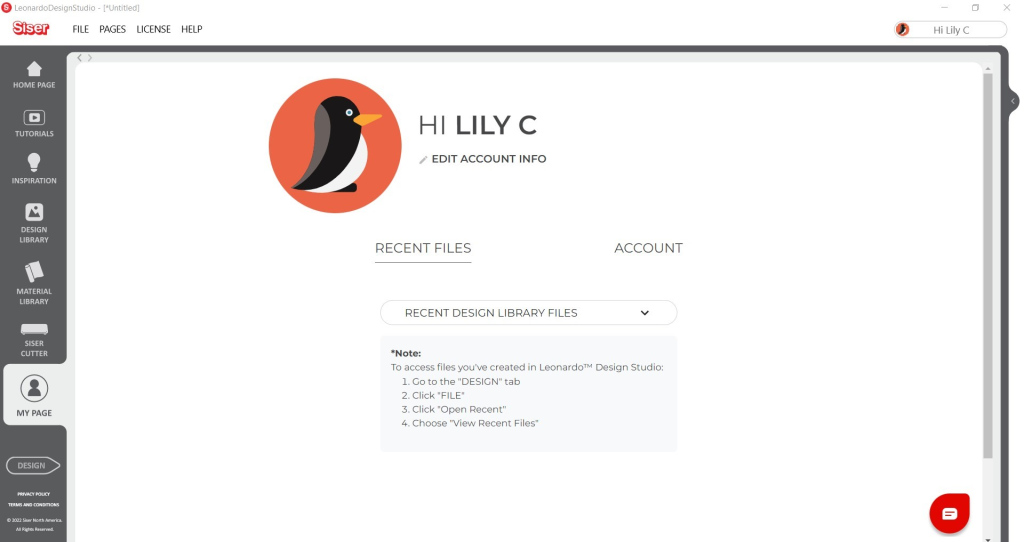
Leonardo Design Studio Pages
Home Screen Overview
When you log in, you’ll land on a seasonal home screen. The background changes often, so don’t worry if yours looks different.
On the left hand side, you’ll see the same set of navigation tabs every time. Let’s walk through them.
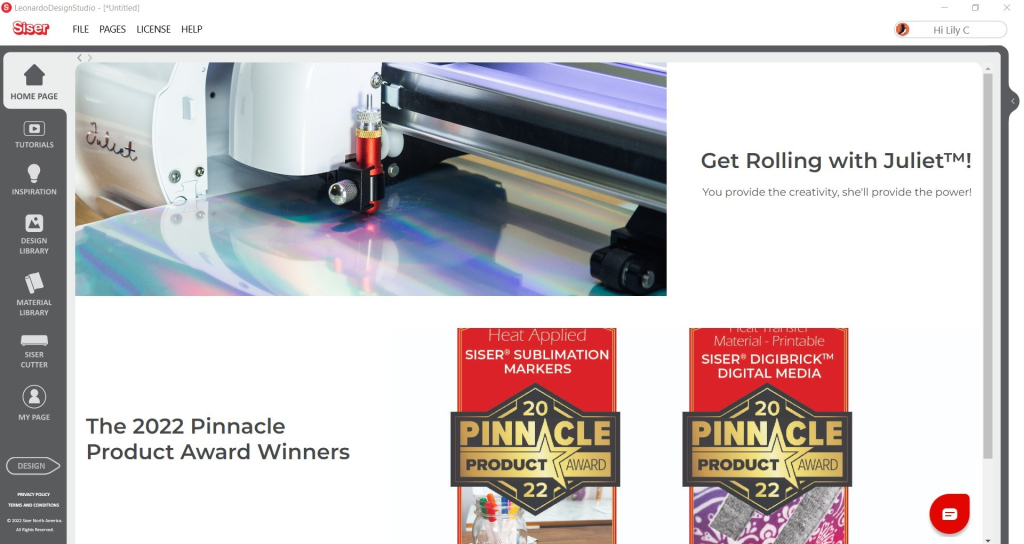
Looking for Guidance?
Need help setting up your Siser cutter or Leonardo Design Studio? We’ve got you covered! This section includes tutorial videos for everything from your first HTV cut to mastering the marker adapter.
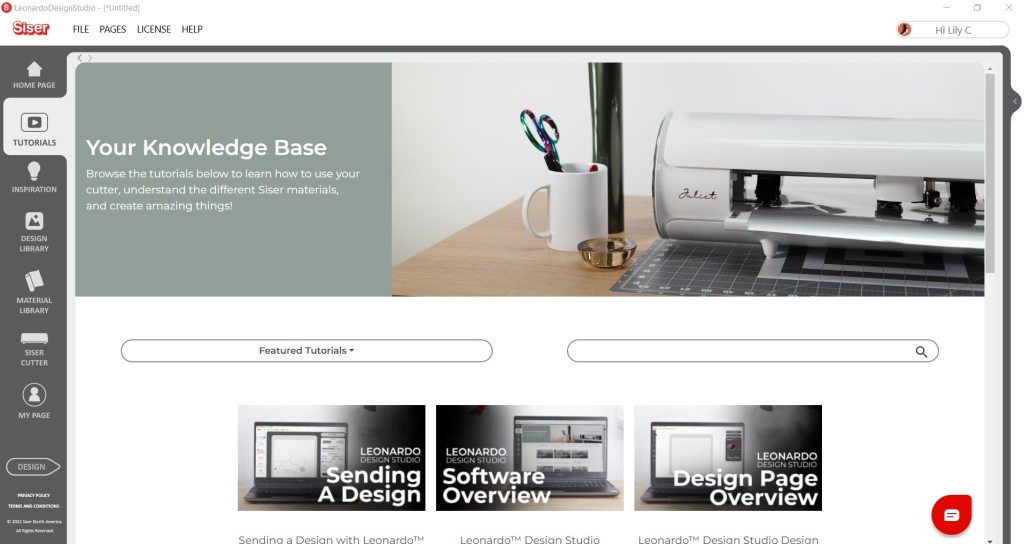
Inspiration
Some days, creativity flows. Other days… not so much. That’s where the Inspiration Library in Leonardo Design Studio comes in handy. This growing collection of ready-to-make projects features photos, easy instructions, and a full list of supplies – whether you’re working with HTV, PSV, of both!
Design Library
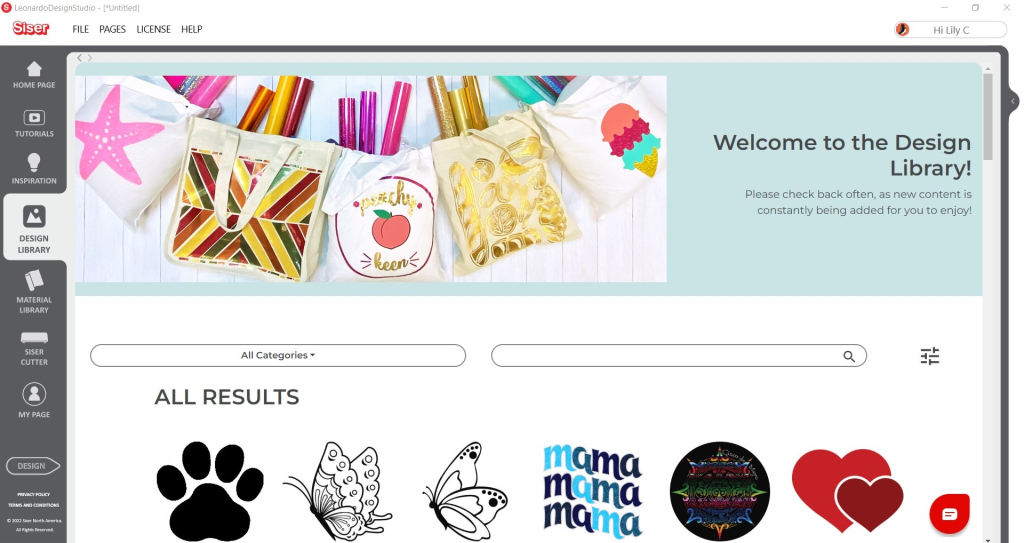
You don’t have to be a pro designer to enjoy Leonardo Design Studio. With over 5,000 vector designs – and new ones added regularly, the Design Library is packed with royalty-free designs you can make and sell without worry.
Material Library
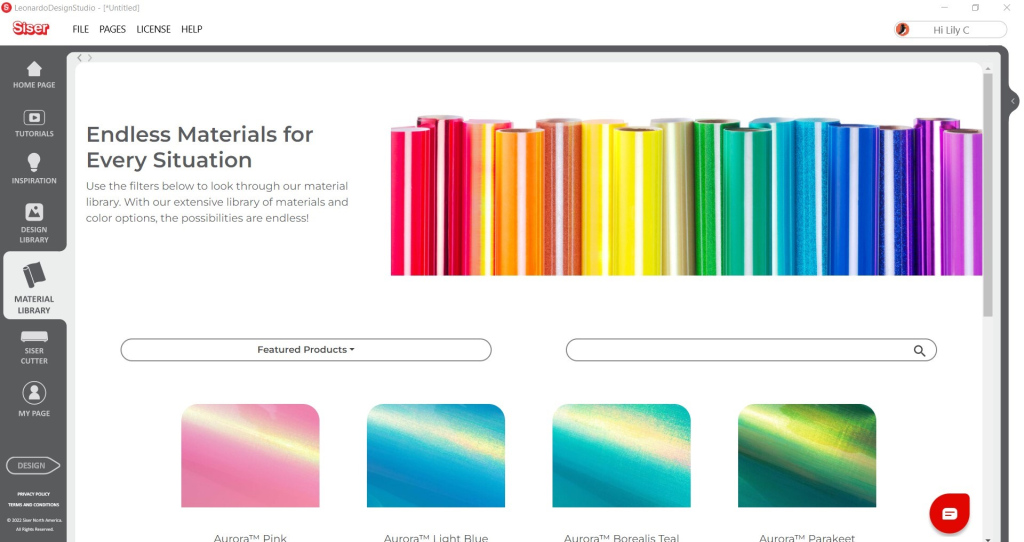
From HTV to PSV and everything in between, the Material Library in Leonardo Design studio makes it easy to check application settings, layering capabilities, and features like laser compatibility or CPSIA certification.
Siser Cutter
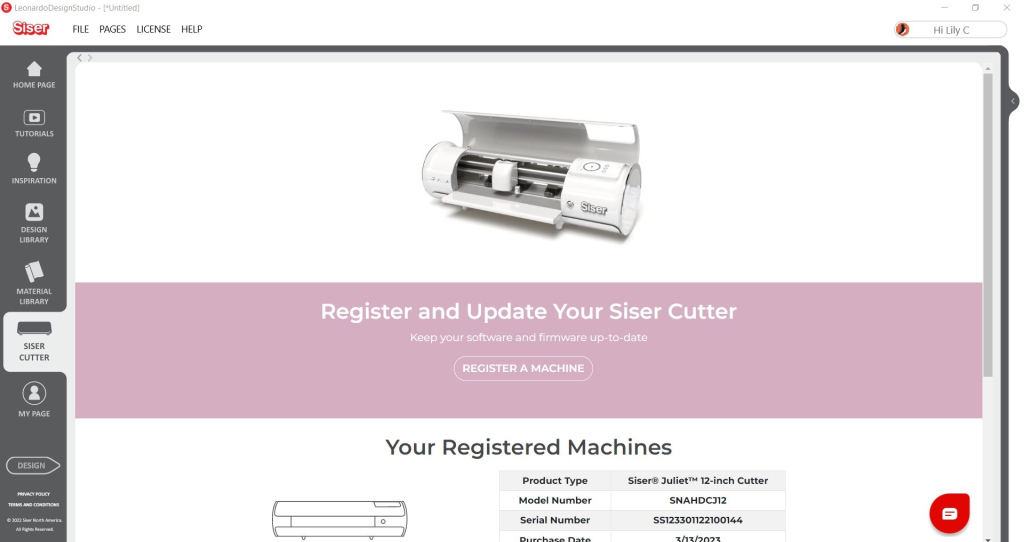
Here you can register a new Romeo or Juliet cutter , or check for software and firmware updates. (Tip: You can also go to Help > Check for software updates anytime.)
Design Screen – Where the Magic Happens
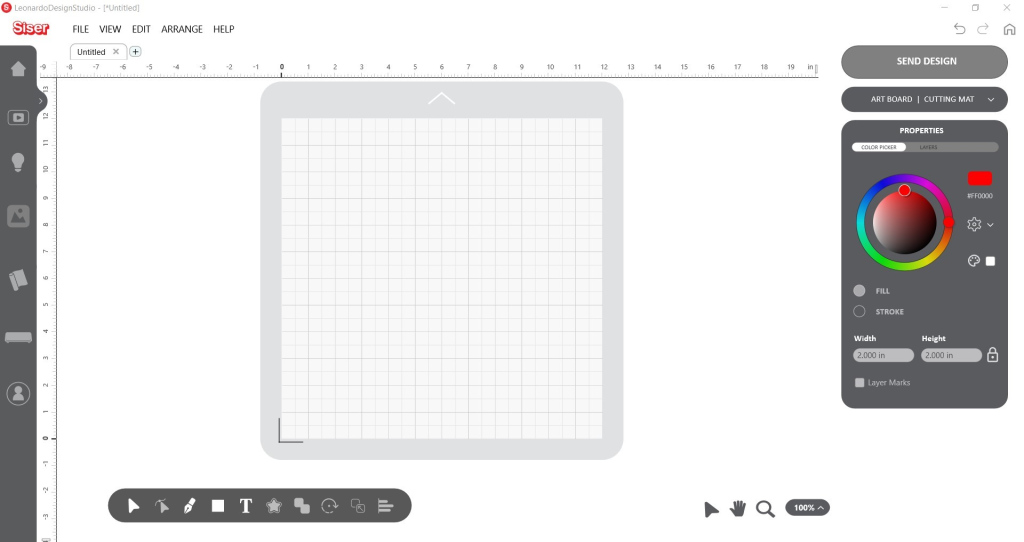
The Design page is where your ideas come to life! Create artwork from scratch or import files for editing directly in Leonardo Design Studio!
Key Tools
The bar across the bottom is packed with powerful tools that will help you make the exact logo you’re looking for. From left to right we have:
- Select Tool
- Select a piece or multiple pieces of artwork to re-arrange and re-size
- Node Select
- Edit curves and points one node at a time
- Draw Tool
- Use the Pen Tool to create shapes one node at a time
- Or use the Sketch Tool to draw shapes as you please
- Draw Shapes
- Create a perfect square, circle, heart, or star every time
- Text Tool
- Access all your computer’s fonts and glyphs to make custom text
- Build Contours
- Make any artwork into a print and cut design
- Weld Tools
- Combine or Separate Paths of overlapping shapes
- Scale Tool
- Rotate, Mirror, or Duplicate shapes
- Arrange Tool
- Group or Ungroup Shapes
- Move layers from front to back
- Align Tool
- Position shapes in different ways: Center/Vertical, Center/Horizontal, Left, Right, Top, or Bottom.
Also at the bottom of the page are a few tools for adjusting the page:
- Select Tool (again)
- Select a piece or multiple pieces of artwork to re-arrange and re-size
- Hand Tool
- Adjust the art board without moving any of the art itself
- Magnifying Glass
- Zoom in
- 100%
- Resume original view before zooming in
It’s a lot simpler to demonstrate how these tools work in a video. Check em’ all out in this YouTube Video Below:
Properties Menu
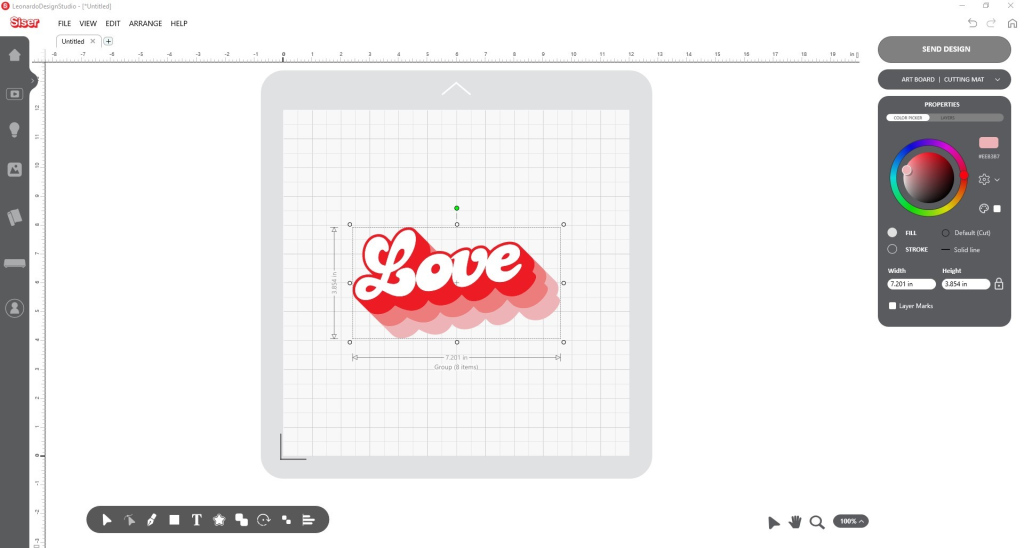
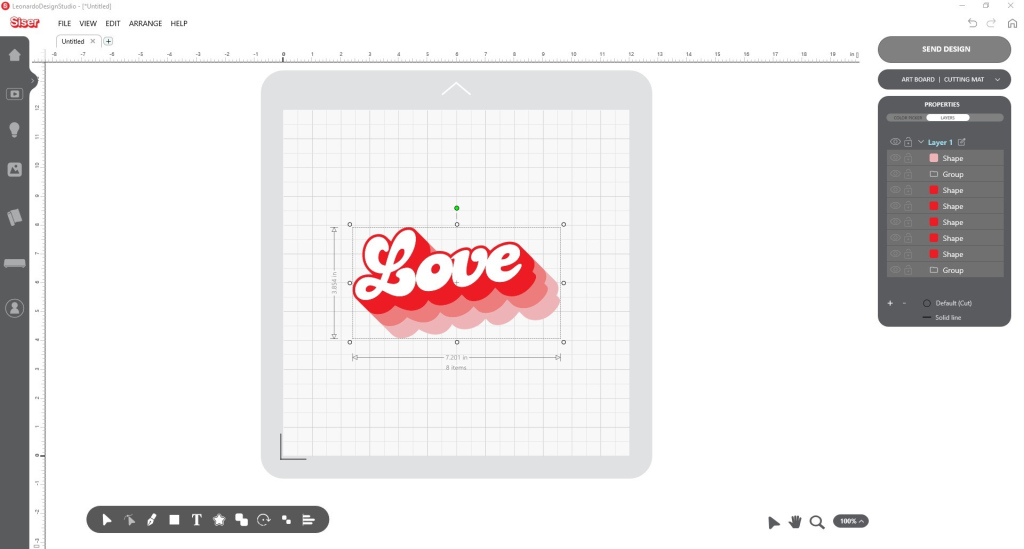
On the side of the Design Screen in Leonardo Design Studio, is the Properties Menu which includes:
Color Picker Panel
- Adjust object’s color, stroke, and size
Layers Panel
- Change the order of the layers
- Lock and unlock layers
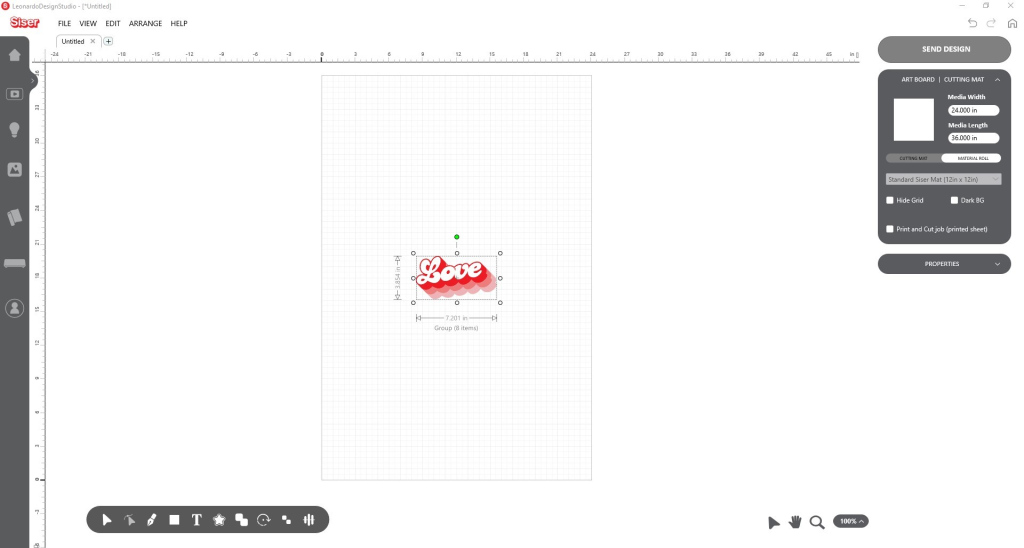
Art Board/Cutting Mat Menu
The last thing to double check before sending your design to the cutter, is your Art Board/Cutting Mat menu. Make sure you’ve selected the type of cutting mat and size you’re working with. A cutting mat isn’t necessary though! You can select Material Roll and set custom dimensions of the roll or sheet you’re working with as well. A few more customization options are here as well for those who prefer to work without a grid or in dark mode.
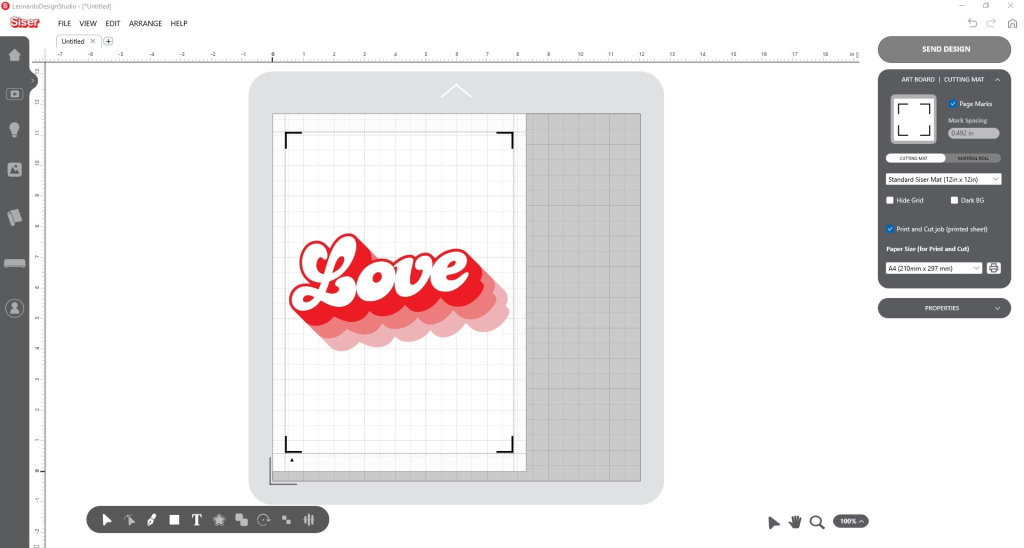
Finally, you can prep any file for print and cut when you check the Print and Cut Job box which automatically allows you to select from common paper sizes. You can learn more about how to print and cut with Leonardo and Romeo or Juliet in this video.
When everything looks the way you like it, select “Send Design.”
Send
If you forgot to set your cutting mat or material size, you can make that change on the Send page as well on the right side of the screen. On the left side of the screen you can see how Leonardo Design studio will separate each color of a cut file into individual sections when you send a standard multicolor design to the cutter. The very top board will be cut first and is outlined in light blue when active. You can choose any part of the design to cut first, just make sure that blue outline is around the object you want to cut.
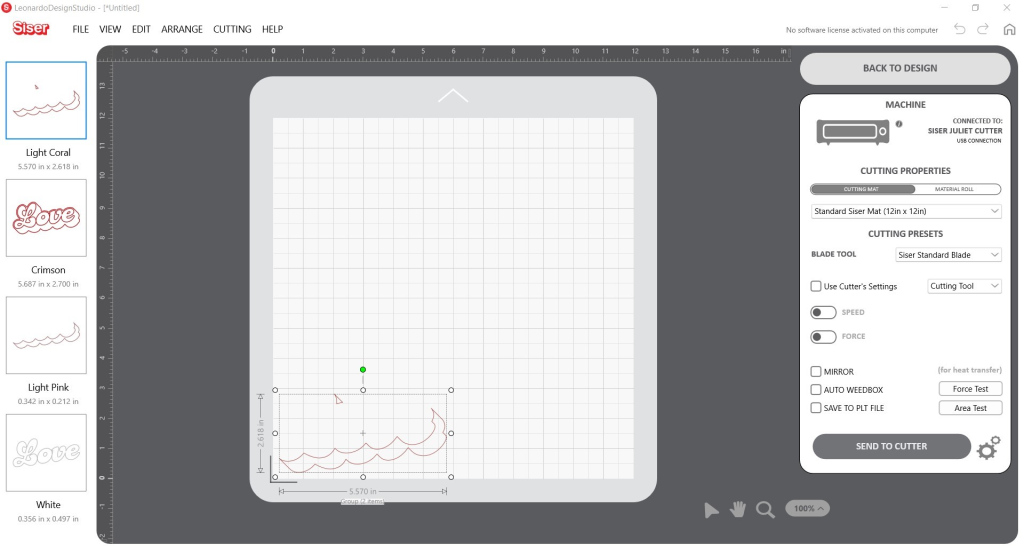
Before clicking “Send to Cutter” make sure you’ve got your material set up on Romeo or Juliet properly. Check out these blog posts for all the info on setting up your material and making your first cut:
Beginner’s Guide to the Siser Romeo
Beginner’s Guide to the Siser Juliet
And one more thing to select before send is the Area Test! The Area Test is my favorite tool because it shows you the exact location on the material that will be cut so you can see if your art fits where you planned and can make any adjustments to prevent wasting material on improper cuts. You can walk through all the features of the Send screen in the video below:
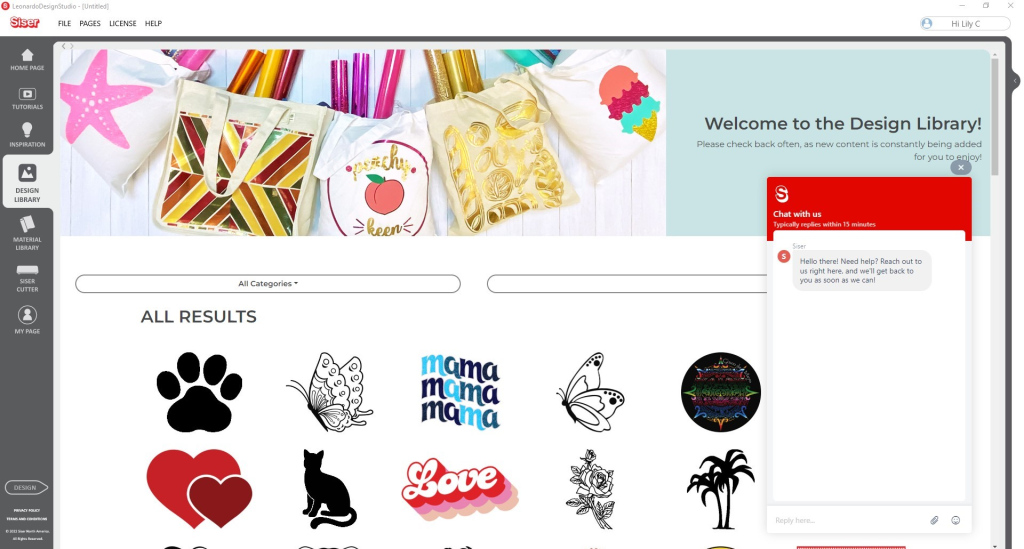
Chat with Us
If you ever get stuck and need help, we’re just a click away! Select the red chat bubble in the bottom right hand corner to talk to a Siser team member who can help troubleshoot all kinds of issues.
Updates & What’s Next
We’re always listening to Siser customers. That’s why Leonardo Design Studio gets regular updates with new features you’ve requested. Have an idea?? Tell us in the comments!
Check out the video below to see the latest additions in Leonardo Design Studio – then fire up your Romeo or Juliet and start your next HTV or PSC project today.
Follow Us
For all the latest and greatest news about Leonardo, Romeo, and Juliet– follow us on our socials where we’ll always sure to make big announcements as well post live tutorials, inspiring projects, and of course- giveaways!
Siser North America Facebook Page
Siser North America Support Group
Last but not least, don’t forget to tell your friends about your new favorite cutting software and machines: Siser Leonardo Design Studio and the Romeo and Juliet High-Definition Cutters!